

Cum setezi laptop lucru remote: Ghid dupa achizitie
Afla cum setezi laptop lucru remote rapid si eficient. De la update-uri si setari microfon la securitate si aplicatii, ai aici checklist-ul esential.
Ce trebuie sa stii acum despre cum setezi un laptop pentru lucrul remote
Primul pas critic nu e instalarea aplicatiilor distractive, ci rularea tuturor update-urilor de sistem si de drivere pentru stabilitate.
Configurarea corecta a sunetului si a microfonului te scapa de situatiile penibile din timpul sedintelor online.
Securitatea datelor este non-negociabila: activeaza criptarea discului si nu uita de solutiile de backup in cloud.
Citeste ghidul complet de mai jos ca sa iti transformi noul gadget intr-o statie de lucru mobila si sigura, gata de actiune in mai putin de o ora.
De ce e vitala configurarea initiala a laptopului pentru remote work?

Lucrul remote inseamna libertatea de a fi productiv de oriunde, dar vine la pachet cu responsabilitatea de a fi propriul tau departament IT. O configurare corecta previne frustrarile tehnice care apar exact cand ai deadline-ul mai strans.
Sa desfaci cutia unui laptop nou e o senzatie aparte. Mirosul ala de electronice noi, folia de pe ecran, tastatura impecabila. Dar, dupa ce trece entuziasmul initial, te lovesti de realitate: e "gol". Ca sa ajungi la nivelul de productivitate pe care il aveai pe vechiul device, trebuie sa treci printr-un proces de configurare laptop remote, care, daca nu e facut cu cap, iti va irosi zile intregi.
Setarea unui laptop pentru lucrul remote se refera la totalitatea ajustarilor software, de retea si de securitate pe care le faci pentru a replica (si imbunatati) mediul de birou, indiferent daca lucrezi de pe canapea, dintr-un coworking space sau de pe o plaja (desi stim amandoi ca nisipul si tastatura nu se impaca).
Gandeste-te asa: cand erai la birou si pica netul, sunai la IT. Acum, cand lucrezi de acasa, tu esti IT-ul. Principalele provocari tin de instabilitatea retelei, securitatea precara pe WiFi-uri publice si lipsa accesului la serverele companiei. Daca nu rezolvi astea din prima zi, te vei trezi ca laptopul isi face update in timpul prezentarii catre client sau ca nu poti deschide un fisier urgent.
Ce risti daca sari peste pasi:
Vulnerabilitate la atacuri cibernetice pe retele nesecurizate.
Performanta scazuta in apeluri video (blocaje, sunet intrerupt).
Pierderea datelor in lipsa unui sistem de backup automatizat.
Skroutz.ro este o destinatie sigura pentru cumparaturile online. Utilizatorii au acces la un catalog vast, cu peste un milion de produse. Oferim o experienta de shopping simpla si avantajoasa, atat in Romania, cat si in Europa.





Cum optimizezi conexiunea la internet pentru stabilitate?
Pentru o experienta fluida, ai nevoie de prioritate la latimea de banda si de setari DNS care sa raspunda rapid, nu doar de un router scump.
Probabil ca ai patit sa ai semnal full la WiFi, dar paginile sa se incarce greu. Asta e adesea o problema de aglomerare a canalelor sau de DNS lent. O conexiune internet remote solida e coloana vertebrala a muncii tale. Fara ea, esti doar un om cu un laptop scump care se uita la un ecran gol.
Pasi pentru configurare retea laptop:
Alege banda de 5GHz: Daca routerul permite, stai mereu pe 5GHz pentru viteza, chiar daca raza de acoperire e mai mica decat la 2.4GHz.
Schimba DNS-ul: Seteaza DNS-urile pe Cloudflare (1.1.1.1) sau Google (8.8.8.8) din setarile adaptorului de retea pentru o navigare mai rapida.
Dezactiveaza actualizarile in background: Seteaza conexiunea ca "Metered" (cu costuri) in Windows daca esti pe hotspot, ca sa nu-ti consume tot traficul.
Daca ai nevoie de mai mult spatiu vizual cand lucrezi de acasa sau dintr-o camera de hotel, un al doilea ecran face minuni pentru organizare.
Vezi oferta noastra de monitoare portabile care te ajuta sa fii eficient oriunde ai fi!
Cum faci setari de microfon laptop pentru sunet clar?
Calitatea audio in videoconferinte este, paradoxal, mai importanta decat cea video; oamenii pot tolera o imagine pixelata, dar vor inchide apelul daca sunetul este metalic sau intrerupt.
Ai observat cum in sedinte mereu e cineva care se aude "ca din spatele camerei" sau caruia i se aude tastatura cand scrie? Nu vrei sa fii tu acea persoana. Configurarea audio remote incepe din setarile de sistem, nu doar din Zoom sau Teams.
Tabel: diagnostic rapid sunet
Pentru o calitate sunet videoconferinte impecabila, testeaza microfonul inainte de primul call. Inregistreaza-te cateva secunde si asculta. Daca suna prost pentru tine, suna prost si pentru ei.
Ce aplicatii instalezi pentru productivitate maxima?
Un laptop "curat" se misca repede, dar nu e util; secretul e sa instalezi doar aplicatii lucru remote esentiale si sa eviti "bloatware-ul".
Nu instala tot ce iti cade in mana. Incepe cu un browser rapid (Chrome sau Edge), suita de office si platformele de comunicare (Slack, Discord, Teams). Pentru configurare software de colaborare, asigura-te ca ai aceleasi versiuni cu echipa ta pentru a evita problemele de compatibilitate la fisiere.
Lista scurta de instrumente productivitate:
Manager de parole: (ex. Bitwarden sau 1Password) – crucial pentru securitate.
Stocare in Cloud: (Google Drive, OneDrive, Dropbox) – seteaza-le sa faca sync doar la fisierele active ca sa nu ocupi tot SSD-ul.
Captura de ecran avansata: (ex. Lightshot sau Snipping Tool) – ajuta enorm cand explici ceva vizual colegilor.
Cum configurezi accesul remote la desktop si fisiere?
Accesul remote la desktop iti permite sa intri pe calculatorul puternic de la birou direct de pe laptopul tau usor, ca si cum ai fi acolo. E util cand ai nevoie de putere de procesare mare (randari, compilari de cod) pe care laptopul tau ultra-portabil nu o are.
Pentru conectare la distanta PC, cele mai comune solutii sunt Microsoft Remote Desktop (RDP) sau solutii third-party precum TeamViewer sau AnyDesk. Atentie mare insa: RDP-ul nu trebuie lasat niciodata deschis direct catre internet fara un VPN, pentru ca este o tinta preferata a hackerilor.
Ca sa lucrezi comod ore intregi, pozitia laptopului e esentiala. Daca stai cocosat, productivitatea scade. Uite un stand de laptop reglabil care iti indreapta spatele si iti ridica ecranul la nivelul ochilor.
Cum optimizezi performanta laptopului pentru lucru remote?
Optimizarea inseamna echilibrul fin intre puterea de procesare si durata bateriei, mai ales cand nu ai o priza langa tine.
Nu vrei ca ventilatorul sa sune ca un avion cand doar scrii un mail, dar nici sa se miste cursorul in reluare cand deschizi un Excel mare. Pentru optimizare laptop remote, intra in setarile de energie (Power Options). Cand esti in priza, foloseste profilul "High Performance". Cand esti pe baterie, "Balanced" e de obicei suficient.
Trucuri pentru performanta lucru de acasa:
Curata startup-ul: Deschide Task Manager si dezactiveaza programele care pornesc odata cu Windows-ul si de care nu ai nevoie imediat (Spotify, Steam, etc.).
Actualizeaza driverele video: Chiar daca nu te joci, driverele noi ajuta la randarea mai fluida a interfetelor grafice din aplicatii.
Gestioneaza tab-urile: Foloseste extensii de browser care suspenda tab-urile inactive pentru a elibera memoria RAM.
Ce accesorii iti transforma laptopul intr-un birou complet?
Un laptop performant e doar motorul; accesoriile sunt caroseria si volanul care fac calatoria confortabila. Daca lucrezi 8 ore pe zi doar la touchpad si pe ecranul de 13-14 inch, in cateva saptamani o sa simti nevoia unei schimbari, atat pentru viteza de lucru, cat si pentru spatele tau.
Nu trebuie sa cumperi tot magazinul, dar cateva piese cheie fac diferenta:
Hub USB-C: Majoritatea laptopurilor moderne sunt super subtiri, dar asta inseamna ca le lipsesc porturile clasice. Un hub bun e "sfant" ca sa poti lega monitorul, mouse-ul si cardul de memorie simultan, fara sa scoti cabluri mereu.
Mouse ergonomic si tastatura externa: Chiar daca trackpad-ul e premium, nimic nu bate precizia unui mouse dedicat pentru task-uri rapide. Iar o tastatura externa iti permite sa tii laptopul sus, pe un stand, la nivelul ochilor.
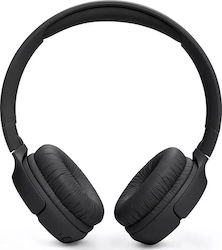
Casti cu noise-cancelling: Sunt esentiale daca nu locuiesti singur sau daca iti place sa lucrezi din cafenele. Te ajuta sa intri in "zona" si sa ignori zgomotul masinii de spalat sau al espressorului, plus ca te vei auzi mult mai clar in sedinte.


Ce masuri de securitate si protectie a datelor aplici?
Securitatea in lucrul remote nu e optionala; datele tale sunt expuse mult mai mult decat intr-un birou securizat.
Primul lucru: activeaza BitLocker (pe Windows) sau FileVault (pe Mac). Asta inseamna ca daca iti pierzi laptopul sau e furat, nimeni nu poate accesa datele de pe el fara parola. Apoi, pentru protecția datelor unui laptop in tranzit, nu te conecta niciodata la WiFi-ul din aeroport sau cafenea fara un VPN configurare activa. VPN-ul creeaza un tunel criptat intre tine si internet.
Si pentru ca tot vorbim de mobilitate si siguranta fizica a dispozitivului, ai nevoie de ceva solid in care sa il transporti. Vezi gentile de laptop care ofera protectie la socuri si spatiu pentru toate accesoriile tale! Cumpara simplu si sigur de pe Skroutz, cel mai mare marketplace din Grecia!

Pasii pentru configurarea laptopului
Daca ai parcurs articolul, iata ce ai de facut chiar acum, in ordine:
Porneste laptopul si lasa-l sa isi faca absolut toate actualizarile de Windows/macOS (da restart de cate ori cere).
Instaleaza un manager de parole si browserul preferat.
Configureaza si testeaza microfonul si camera cu un prieten.
Activeaza criptarea hard-disk-ului si seteaza un PIN sau amprenta pentru logare rapida.
Intrebari frecvente despre cum setezi laptop pentru lucru remote
Este obligatoriu sa instalez un antivirus daca am deja Windows Defender?
Windows Defender a devenit foarte capabil in ultimii ani si este suficient pentru majoritatea utilizatorilor prudenti. Totusi, daca descarci frecvent fisiere din surse variate sau lucrezi cu date extrem de sensibile, o solutie de securitate dedicata (platita) poate oferi straturi suplimentare de protectie, cum ar fi filtrarea e-mailurilor de phishing sau protectia bancara.
Cum pot sa lucrez cu laptopul inchis (clamshell mode) daca am monitor extern?
Trebuie sa intri in setarile de energie (Control Panel -> Power Options -> Choose what closing the lid does) si sa selectezi "Do nothing" in dreptul optiunii "When I close the lid" pentru situatia in care laptopul este conectat la priza. Astfel, laptopul va ramane pornit si va afisa imaginea doar pe monitorul extern, economisind spatiu pe birou.
De ce se deconecteaza WiFi-ul cand laptopul intra in sleep?
Acesta este un comportament standard pentru economisirea bateriei. Daca vrei sa ramai conectat (de exemplu, pentru a primi notificari sau a termina un download), poti modifica setarile adaptorului de retea din Device Manager, debifand optiunea "Allow the computer to turn off this device to save power". Atentie, acest lucru va consuma bateria mai repede.
Cat de des ar trebui sa fac backup la date cand lucrez remote?
Ideal este sa ai o solutie de backup in timp real, cum ar fi OneDrive sau Google Drive, care salveaza fisierele pe masura ce le modifici. In plus, este recomandat sa faci un backup complet al sistemului pe un hard disk extern o data pe saptamana sau cel putin o data pe luna, pentru a te proteja impotriva defectiunilor hardware sau a atacurilor de tip ransomware.
Pot folosi laptopul personal pentru munca remote in siguranta?
Da, dar e riscant sa amesteci datele personale cu cele profesionale. Cel mai bine este sa creezi un cont de utilizator separat pe laptop dedicat exclusiv muncii. Astfel, tii fisierele si setarile separate si reduci riscul ca un joc sau o aplicatie personala sa compromita securitatea datelor de serviciu.
Sursa foto: DepositPhotos
Άφησε πρώτος το σχόλιό σου!