10
00
€
Delivery
by Wed, 11 Nov
3,50 €
shipping cost
From
Toxw
Shipping costs and delivery speed are calculated based on the delivery location.


The Powertech TOOL-0047 converter connects an M.2 NVMe SSD with an M Key to a PCIe x16 slot. It supports M.2 SSDs in sizes 2230, 2242, 2260, and 2280 and works with Plug and Play.
The Powertech TOOL-0047 converter connects an M.2 NVMe SSD with an M Key to a PCIe x16 slot. It supports M.2 SSDs in sizes 2230, 2242, 2260, and 2280 and works with Plug and Play.
Already in cart from another shop
No problem, as long as it's within 14 days. We'll come pick it up or you can choose the Skroutz Point that suits you, completely free for up to 2 times per year, and we'll refund your money. Get Skroutz Plus to enjoy unlimited free returns.
The Powertech TOOL-0047 converter connects an M.2 NVMe SSD with an M Key to a PCIe x16 slot. It supports M.2 SSDs in sizes 2230, 2242, 2260, and 2280 and works with Plug and Play.
Specifications are collected from official manufacturer websites. Please verify the specifications before proceeding with your final purchase. If you notice any problem you can report it here.
Users generally report that the adapter works as expected with NVMe SSDs and that installing the drive and connecting it to a PCIe slot are easy. It’s considered a practical, affordable solution for using M.2 NVMe drives in computers without a suitable slot. However, some point out that it offers limited flexibility because it requires an x16 slot. Others also mention slower speeds than a direct M.2 connection and a somewhat loose fit.

I have been using it for about a month. I installed a Samsung 970 Evo Plus SSD-500GB M2 NVMe PCI Express 3.0 and placed it in the PCI Express 3.0 x16 slot of the motherboard (AsRock Z77 pro 3). It fit well and then I installed Windows 11. Measuring the speed of the Samsung with crystal disk mark: Read 1850 MB/s, Write 1750 MB/s. On another computer that has an M2 slot (MSI A320M BAZOOKA), I have installed the same Samsung and the speeds are approximately twice as fast. That's why I gave it three stars. It hasn't had any issues and I recommend it for purchase mainly because of its low price.
Την χρησιμοποιώ ένα μήνα περίπου. Έχω βάλει έναν Samsung 970 Evo Plus SSD-500GB M2 NVMe PCI Express 3.0 και την τοποθέτησα στη θύρα PCI Express 3.0 x16 της μητρικής (ΑsRock Z77 pro 3). Κούμπωσε καλά και στη συνέχεια εγκατέστησα τα Windows 11. Μετρώντας την ταχύτητα του Samsung με το crystal disk mark: Ανάγνωση 1850 MB/s, εγγραφή 1750 MB/s. Σε άλλον υπολογιστή που έχει θύρα M2 (MSI A320M BAZOOKA έχω τοποθετήσει τον ίδιο Samsung και οι ταχύτητες είναι περίπου διπλάσιες. Γι' αυτό και τα τρία αστέρια. Δεν έχει παρουσιάσει κάποιο πρόβλημα και την συστήνω για αγορά λόγω κυρίως της χαμηλής τιμής που έχει.
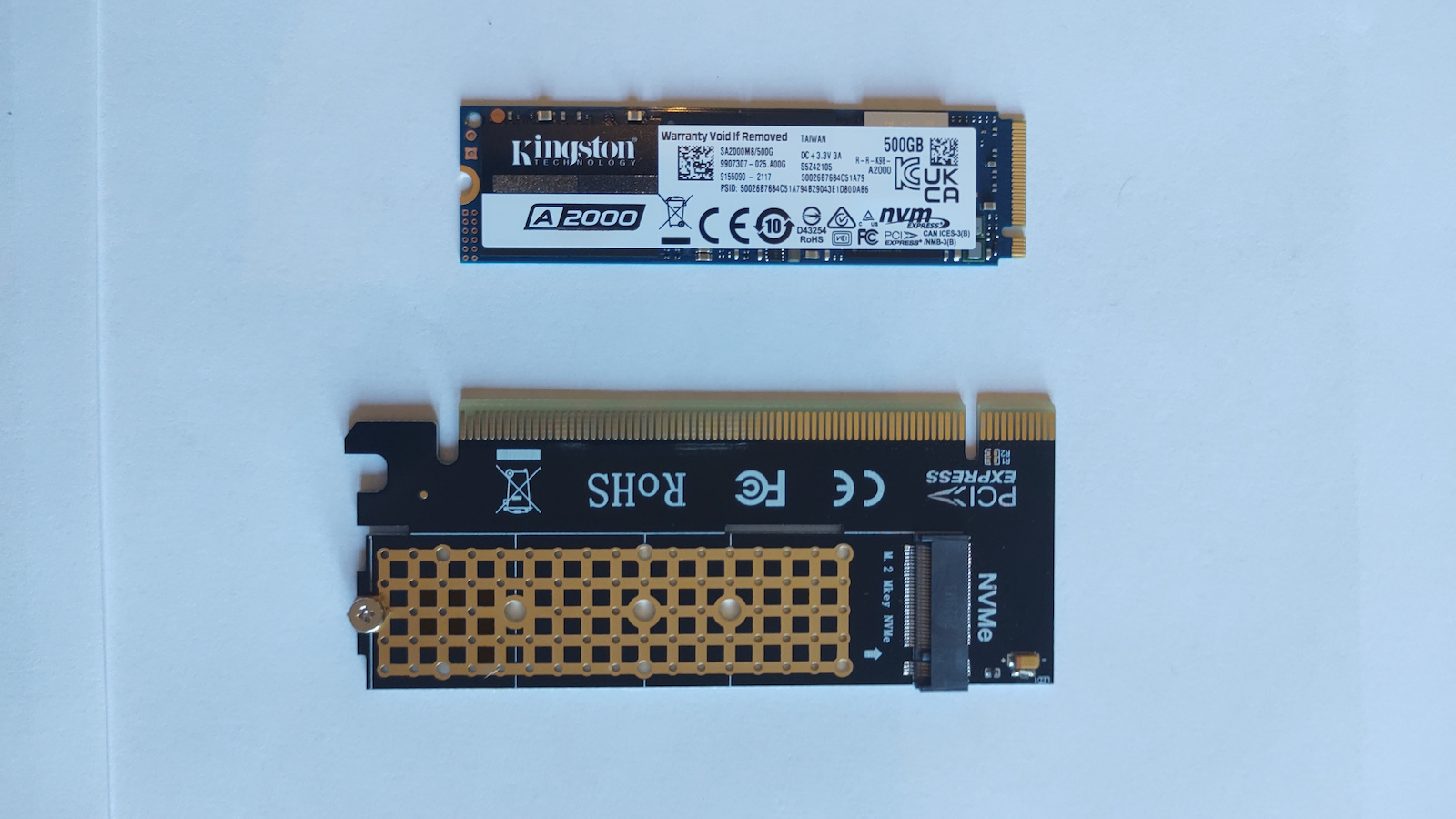
As you read my review, take a look at the photos I have uploaded for the product. I also have an M.2 NVMe SSD to give you a comparative idea of the size and assembly.
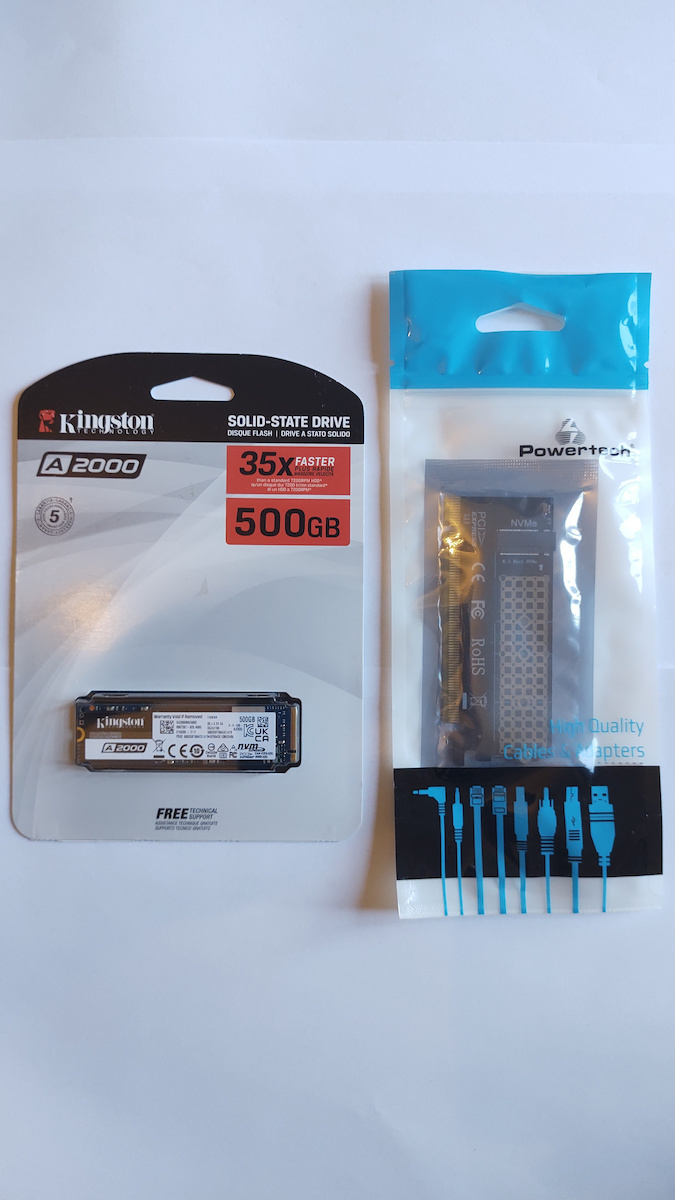
As shown in the photo, the product packaging is a simple bag, similar to those commonly used for cables, etc. Inside the bag, the adapter was sealed with an anti-static bag, similar to those used for HDDs or motherboards.
The M.2 SSD easily plugged into one side of the adapter and was secured with the adapter's screw, which fortunately was provided, so I didn't have to look elsewhere to find it.
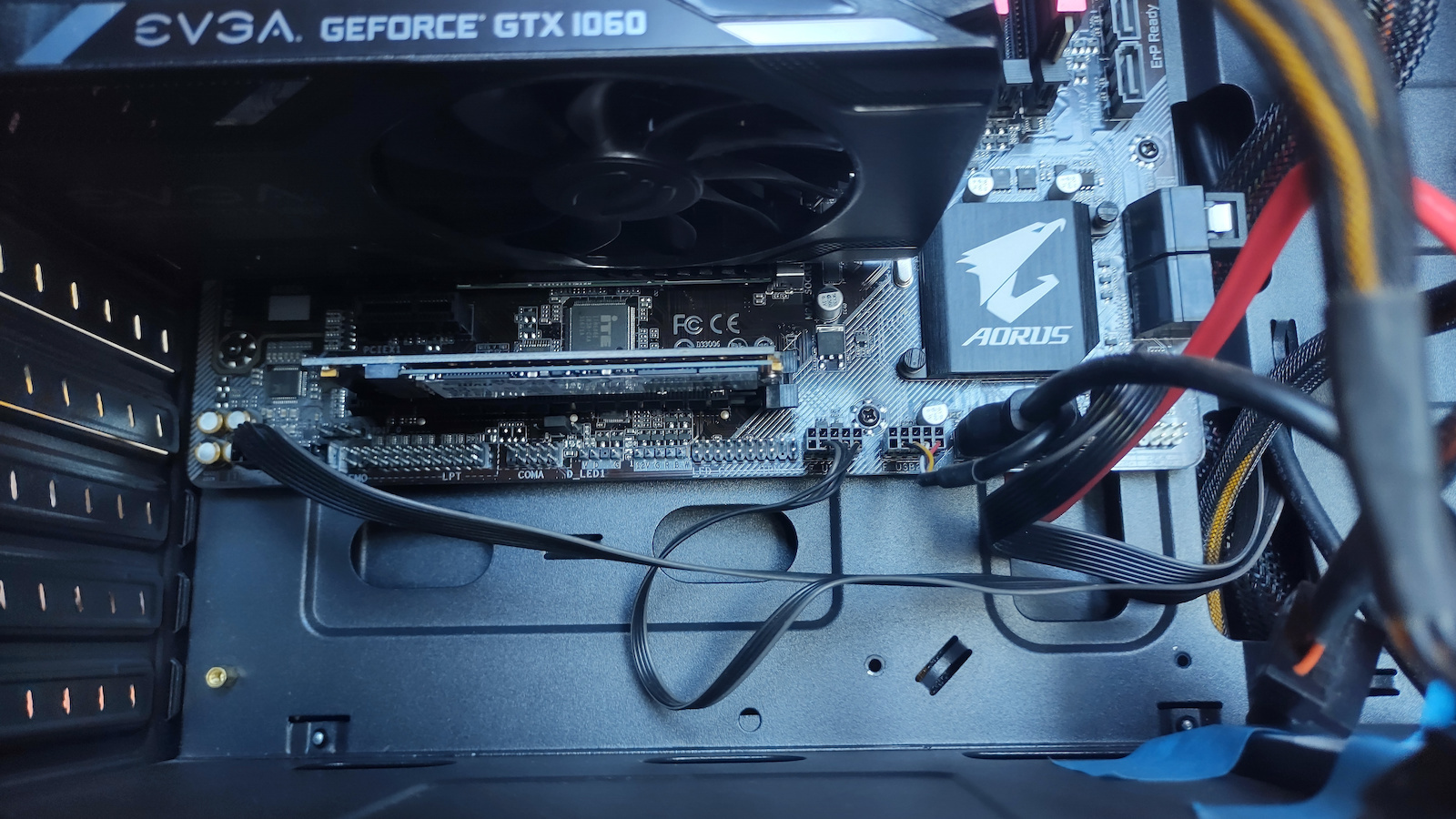
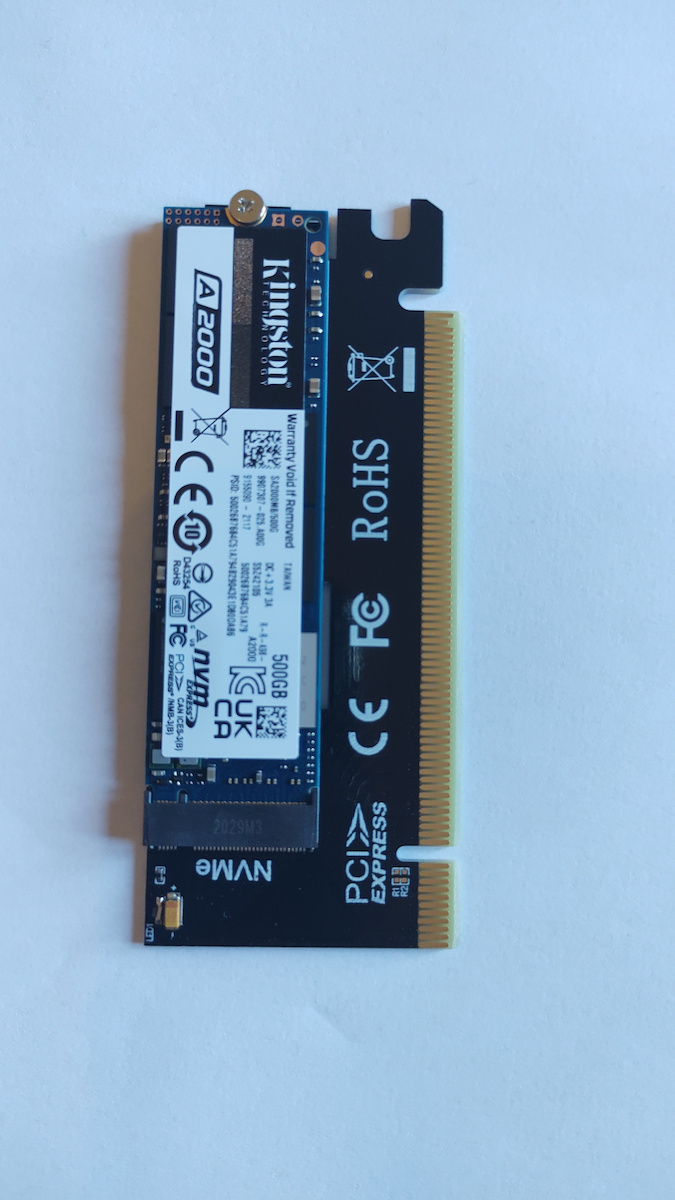
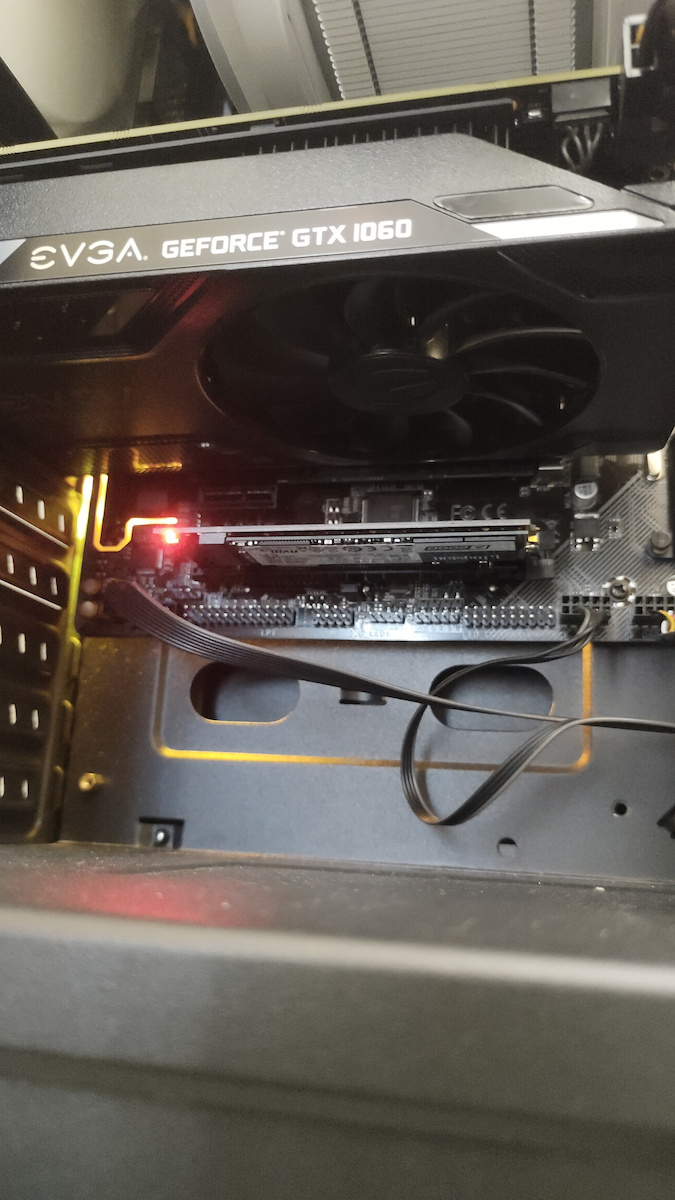
Next, the adapter easily fit into the PCIe x16 slot on the motherboard, and even though it didn't rely on an additional bracket, it was very stable due to its lightweight. In the image, you can see that the M.2 SSD is facing downwards. If you have this question, in case you are interested in adding a heatsink, it also appears to have a small volume-surface area and does not affect the airflow of the case.
When I turned on the computer, I noticed that the adapter has a small red light (see photo) in the corner next to the screw. It continuously lights up when it is simply in operation and blinks when performing various tasks such as file transfers, etc.
It worked perfectly, and in the crystal disk mark measurements, it gave 1600 read / 1500 write on my system with Gigabyte B450 M Aorus, Ryzen 2600x, and DDR4 3000 MHz.
In the manual of my motherboard, it states that the second PCIe x16 slot, where I connected the adapter, operates at PCIe x4 speed, NOT at x16 speed, even though it visually appears as an x16 slot. Nevertheless, the adapter worked fine, and I think that even if the slot operated at x16 speed, I would still have the same result overall because, as I read on the internet and in a previous comment here on Skroutz, all NVMe drives require and use only x4 speeds. Therefore, the remaining part of the adapter for x16 is there for connection purposes but is non-functional. Personally, I chose the x16 adapter because the PCIe x4, due to its fewer "teeth" to be sufficiently stable, has an additional metal bracket with screws, similar to those of graphics cards. This way, I avoided the hassle and the unaesthetic visual result, and I also have better airflow as there is no closed cavity formed by a screwed bracket on the back of the case. Additionally, the SSD is better cooled along with the rest of the system. You can see in the photo with the entire image of the case that the adapter takes up minimal space and aesthetically does not ruin the image of a modern and "clean" internal system. Now, if someone prefers to use the adapter for PCIe x4 and to remove the bracket's port from the back to screw it elsewhere and make the computer look like it has a 90s PSTN modem and then rate this product with four stars, well, what can I say, it's a matter of personal preference.
In response to the question of whether the purchase is ultimately worth it, with a Skroutz price of around 4 to 5 euros, you can install this useful adapter in a PCIe x16 slot on your motherboard and have a second M.2 NVMe SSD with triple or quadruple the speed of a regular SATA SSD, and moreover, in an elegant way without SATA connection cables and power supply. And also with a price now (June 2021) many M.2 nvme drives are the same and cheaper than many regular 2.5-inch sata ssd drives, I don't think there is a reason to go for the latter unless you are unaware of such cheap adapters that solve your hands. Personally, I got it because I don't have a second M.2 drive slot on my motherboard and I want to clone the Windows drive in a future upgrade, so if you are in the same situation as me, then this purchase is probably the only option for this job, otherwise you will need to buy an external nvme case with a USB connection which costs around 20 or 30 euros and more. Instead of spending that money, I preferred to add a little more and buy the Kingston A2000 500gb for about 50 euros, which has over 100 reviews with 5 stars and runs like a bullet compared to regular sata ssd drives, and also has reliability with a 5-year warranty like almost all nvme drives, unlike most slow ssd drives that usually only offer a 3-year warranty.
Finally, let me add my own experience with recognition in Windows, as I am not a computer expert, and maybe I can help those who are at the same level as me. When I opened the computer, I had the hard disk sentinel starting immediately with the Windows startup, and so the first image I saw for the M.2 ssd disk of the adapter was a red-pink indication in the hard disk sentinel instead of the green that all my other disks had, and also that the health was 0. I was initially worried but I searched on the internet and found a question on a forum with the same problem for a new disk in the hard disk sentinel and the answer was that it may not have been updated in the hard disk sentinel and that's why it couldn't diagnose the new disk. Finally, after first formatting the disk from Windows, I then did the update and it showed me green color with 100% health.
I personally struggled a bit to get Windows to recognize the disk and it showed in file explorer, I had to first open Computer Management with administrative privileges, from there I think I chose disk management-storage and it showed me all the disks. This particular one said that it has not been allocated or something like that, so I proceeded with the necessary actions, I think I right-clicked and then clicked on prepare disk which asked me to choose between mbr and gpt style and after that I proceeded with disk formatting, etc. Sorry if I'm not describing it well, but I did the whole process by reading and watching tutorials, step by step, and I don't remember the terminology well now.
Yes, the above actions were needed because although the disk was visible in the hard disk sentinel even with zero health, it did not appear in file explorer, so it was as if it didn't exist.
One last "issue" I encountered was that immediately after the process I did for recognition and the disk appeared in file explorer, although the disk had 100% health after the update in the hard disk sentinel, when I opened "My Computer" in file explorer, this new disk appeared, but it had a red "X" indication in the lower left corner of its icon. I searched again for this on Google and found many similar topics titled "red x icon on files or hard drives," and from what I understood, it may have appeared because the disk was not synchronized with OneDrive or something like that. Anyway, when I returned to the computer after a while to solve the problem according to various suggested actions I found on Google, I saw that it disappeared, something that I had read on Google that it can happen on its own, meaning the red "X" when you open and close the computer or when it "takes its time" until Windows synchronizes it. Now it works perfectly and goes smoothly, but maybe if you are not familiar with such small issues, you might worry a little at first and struggle.
edit: 21-01-2022, the adapter continues to work flawlessly.
edit 02-08-2022, it still works great
Καθώς διαβάζετε την αξιολόγησή μου δείτε τις φωτογραφίες που έχω ανεβάσει για το προϊόν, έχω μαζί και έναν ssd M.2 nvme για να καταλάβετε συγκριτικά το μέγεθος αλλά και την συναρμολόγηση.
Όπως φαίνεται στη φωτό η συσκευασία του προϊόντος είναι ένα απλό σακουλάκι, όπως αυτά που συνηθίζονται για καλώδια κτλ, και μέσα στο σακουλάκι ο αντάπτορας ήταν σφραγισμένος με αντιστατικό σακουλάκι όπως αυτά των hdd ή των motherboard.
Ο Μ.2 ssd κούμπωσε πολύ εύκολα στην υποδοχή του αντάπτορα από την μια πλευρά και από την άλλη βιδώθηκε με το βιδάκι του αντάπτορα που ευτυχώς το παρέχει και έτσι δεν χρειάστηκε να ψάξω αλλού για να το βρω.
Στη συνέχεια ο αντάπτορας κούμπωσε πάνω στο Pcie x16 slot της μητρικής πολύ εύκολα και παρότι δεν στηρίζεται σε επιπλέον bracket, ήταν πολύ σταθερό καθώς το βάρος του είναι πανάλαφρο. Στην εικόνα φαίνεται ότι ο M.2 ssd "κοιτάει" προς τα κάτω, αν έχετε αυτήν την απορία σε περίπτωση που ενδιαφέρεστε να προσθέσετε heatsink, και επίσης φαίνεται ότι έχει μικρό όγκο-επιφάνεια και δεν επηρεάζει το airflow του κουτιού.
Όταν άνοιξε ο υπολογιστής τότε παρατήρησα ότι ο αντάπτορας έχει ένα μικρό κόκκινο φωτάκι (βλέπε φωτό) στην γωνία δίπλα από το βιδάκι του, το οποίο ανάβει συνεχόμενα όταν είναι απλά σε λειτουργία και αναβοσβήνει όταν τρέχει σε διάφορες εργασίες όπως π.χ. μεταφορά αρχείων κτλ.
Δούλεψε τέλεια, και στις μετρήσεις με crystal disk mark έδωσε 1600 read /1500 write, στο δικό μου σύστημα με gigabyte b450 m Aorus, Ryzen 2600x και ddr4 3000 Mhz.
Στο manual της μητρικής μου γράφει ότι το δεύτερο slot της pcie-x16 που συνέδεσα τον αντάπτορα λειτουργεί με ταχύτητα pcie- x4, δλδ ΟΧΙ με ταχύτητα x16 , παρόλο που οπτικά φαίνεται slot x16. Παρόλα αυτά δούλεψε κανονικά ο αντάπτορας και μάλιστα νομίζω ότι ακόμα και ταχύτητα x16 να λειτουργούσε το slot πάλι το ίδιο αποτέλεσμα θα είχα γενικά γιατί όπως διάβασα στο ίντερνετ αλλά και στο προηγούμενο σχόλιο εδώ μέσα στο Σκρουτζ, όλοι οι nvme χρειάζονται και χρησιμοποιούν μόνο x4 ταχύτητες οπότε τα υπόλοιπο κομμάτι στον αντάπτορα για χ16 υπάρχει για να κουμπώνει αλλά είναι μη λειτουργικό. Εγώ προσωπικά επέλεξα τον αντάπτορα x16 γιατί ο pcie-x4 λόγω των λιγότερων "δοντιών" για να είναι επαρκώς σταθερός έχει επιπλέον μεταλλικό bracket με βίδες όπως αυτά των καρτών γραφικών, και έτσι γλίτωσα την αγγαρεία και το αντιαισθητικο οπτικό αποτέλεσμα αλλά και έχω και καλύτερο airflow καθώς δεν σχηματίζεται από κάποιο βιδωμενο bracket κλειστό θυλάκωμα ("γωνία") στο πίσω μέρος του κουτιού και επιπλεον ο ssd έτσι ψύχεται κι αυτος καλύτερα μαζί με το υπόλοιπο σύστημα. Μπορείτε να δείτε στην φωτο με την ολόκληρη εικόνα του κουτιού ότι ο αντάπτορας πιάνει ανεπαίσθητο όγκο-επιφάνεια και αισθητικά δεν θα σας χαλάσει την εικόνα ενός σύγχρονου και "καθαρού" εσωτερικού συστήματος. Αν τώρα κάποιος προτιμάει να βάλει τον αντάπτορα για pciex4 και να ξεπατώνει την θύρα του bracket από πίσω για να βιδώνει άλλο και να φαίνεται ο υπολογιστής σαν να έχει pstn modem δεκαετίας του 90 και μετά να βαθμολογεί το προϊόν αυτό με τέσσερα αστέρια τότε τι να πω, γούστα είναι αυτά.
Στην ερώτηση αν αξίζει τελικά η αγορά? Πραγματικά, με τιμή Σκρούτζ γύρω στα 4 με 5 ευρώ, μπορείτε να βάλετε αυτό το χρήσιμο ανταπτοράκι σε ένα pcie x16 slot της μητρικής σας και να έχετε έναν δεύτερο σκληρό ssd M.2 nvme με τριπλάσιες ή τετραπλάσιες ταχύτητες από έναν συνηθισμένο ssd sata και μάλιστα με κομψότατο τρόπο χωρίς καλώδια σύνδεσης sata και τροφοδοσίας. Και επίσης με τιμή τώρα τελευταία (Ιούνιο 2021) πολλών M.2 nvme δίσκων ίδια και φθηνότερη από πολλούς απλούς sata ssd 2.5 ιντσών, δε νομίζω ότι έχει κάποιος λόγο για να πάει στους δεύτερους εκτός κι αν έχει άγνοια τέτοιων πάμφθηνων ανταπτόρων που σου λύνουν τα χέρια. Εγώ προσωπικά τον πήρα και επειδή δεν έχω δεύτερη υποδοχή M.2 δίσκου στην μητρική και θέλω κάποια στιγμή να κάνω cloning τον δίσκο των Windows σε μελλοντική αναβάθμιση, οπότε αν είστε στην ίδια περίπτωση με εμένα τότε μάλλον και για εσάς η αγορά αυτή μάλλον είναι μονόδρομος για αυτήν την δουλειά, αλλιώς θα πρέπει να αγοράσετε εξωτερικό nvme case με σύνδεση USB το οποίον κοστίζει από 20 ή 30 ευρώ και παραπάνω. Εγώ προτίμησα αντί για αυτά τα λεφτά να βάλω ακόμη τόσα και να αγοράσω τον Kingston A2000 500gb με κόστος περίπου 50 ευρώ που έχει πάνω από 100 κριτικές με 5 αστέρια και τρέχει σαν σφαίρα σε σχέση με απλούς sata ssd και επιπλέον έχει αξιοπιστία με 5 χρόνια εγγύηση όπως σχεδόν όλοι οι nvme σε αντίθεση με τους πιο πολλούς αργούς ssd που συνήθως δίνουν μόνο 3 χρόνια εγγύηση.
Τέλος να προσθέσω την δική μου εμπειρία κατά την αναγνώριση στα Windows, καθώς δεν είμαι ιδιαίτερος expert πάνω στους υπολογιστές, και έτσι ίσως βοηθήσω όσους είναι στο ίδιο επίπεδο με εμένα.
Όταν άνοιξα τον υπολογιστή έχω το hard disk sentinel να ξεκινάει αμέσως μαζί με την εκκίνηση των Windows, και έτσι η πρώτη εικόνα που είδα για τον δίσκο ssd M.2 του αντάπτορα ήταν με κόκκινη-ροζ ένδειξη στο hard disk sentinel αντί για πράσινη που είχαν όλοι οι άλλοι δίσκοι μου, καθώς και επίσης ότι η υγεία είναι 0. Ανησύχησα αρχικά αλλά έψαξα στο ίντερνετ και βρήκα σε κάποιο φόρουμ ερώτηση με το ίδιο πρόβλημα για νέο δίσκο στο hard disk sentinel και η απάντηση ήταν ότι πιθανόν να μην έχει γίνει update στο hard disk sentinel και για αυτό να μην μπορεί να διαγνώσει τον νέο δίσκο. Τελικά αφού πρώτα προχώρησα σε μορφοποίηση του δίσκου από τα Windows στη συνέχεια έκανα το update και μου εμφάνισε πράσινο χρώμα με 100% υγεία.
Λίγο παιδεύτηκα προσωπικά γα να αναγνωρίσουν τα Windows τον δίσκο και φαίνεται στην εξερεύνηση αρχείων, έπρεπε πρώτα πρώτα να ανοίξω την Δαχείριση υπολογιστή με άδεια διαχειριστή, από εκεί μετά νομίζω διάλεξα διαχείριση δίσκων-αποθήκευση και μου εμφάνισε όλους τους δίσκους. Ο συγκεκριμένος έγραφε ότι δεν έχει εκχωρηθεί ή κάτι τέτοιο , οπότε προχώρησα στις απαραίτητες ενέργειες, νομίζω έκανα δεξί κλικ και μετά πάτησα προετοιμασία δίσκου που μου ζήτησε να διαλέξω στυλ ανάμεσα σε mbr και gpd και μετά από αυτό προχώρησα σε μορφοποίηση δίσκου κτλ. Συγνώμη αν δεν τα περιγράφω καλά, αλλά όλη την διαδικασία την έκανα διαβάζοντας και βλέποντας tutorial , βήμα προς βήμα , και δεν θυμάμαι τώρα καλά τις ορολογίες.
Ναι, χρειαζόταν οι παραπάνω οι ενέργειες γιατί παρότι ο δίσκος ήταν ορατός από το hard disk sentinel έστω και σαν μηδενικής υγείας , εντούτοις δεν φαινόταν στην εξερεύνηση αρχείων, οπότε ήταν σαν να μην υπάρχει.
Ένα τελευταίο "προβληματάκι" που συνάντησα ήταν ότι αμέσως μετά την διαδικασία που έκανα για αναγνώριση και να φαίνεται ο δίσκος στην εξερεύνηση αρχείων , παρότι ο δίσκος είχε πλέον μετά το update στο hard disk sentinel 100% υγεία όταν άνοιγα τον " ο υπολογιστής μου" στην εξερεύνηση αρχείων τότε αυτός ο νέος δίσκος φαινόταν μεν, αλλά είχε στο εικονίδιό του κάτω αριστερά ένα κόκκινο "Χ" ένδειξη. Έψαξα πάλι και για αυτό στο Google και βρήκα παρά πολλά παρόμοια θέματα με τίτλο "red x icon on files or hard drives" και από τα λίγα που κατάλαβα είναι ότι πιθανόν να εμφανιζόταν επειδή ο δίσκος δεν ήταν συγχρονισμένος με το OneDrive ή κάτι τέτοιο. Τέλος πάντων όταν μετά από αρκετή ώρα επέστρεψα στον υπολογιστή για να λύσω το πρόβλημα σύμφωνα με διάφορες προτεινόμενες ενέργειες που βρήκα στο Google είδα ότι εξαφανίστηκε , κάτι το οποίο είχα διαβάσει στο Google ότι μπορεί να συμβεί να χαθεί από μόνο του δηλαδή το κόκκινο "Χ" όταν ανοίξεις και κλείσεις τον υπολογιστή ή όταν "πάρει τον χρόνο του" μέχρι να τον συγχρονίσουν τα Windows. Τώρα λειτουργεί φυσικά τέλεια και πάει σφαίρα, αλλά ίσως αν δεν είστε κι εσείς εξοικειωμένοι με τέτοια μικρά θεματάκια, να ανησυχήσετε λιγάκι στην αρχή και να παιδευτείτε.
edit: 21-01-2022 , ο αντάπτορας συνεχίζει να λειτουργεί απροβλημάτιστα.
edit 02-08-2022 λειτουργεί ακόμα μια χαρά
The SSD plugged in well, as well as the card in the PCIe slot, and it works properly without any issues.
The 4 stars because, although SSDs use 4 lanes (PCIe x4) and there is no reason for the existence of the remaining pins other than better support (the remaining pins are disconnected and irrelevant in this case), in this specific one there is no cut at the end of the necessary pins, resulting in the need for an x16 slot to connect. Prefer another one with cuts or no extra pins so that it can fit into smaller slots for greater flexibility, unless you are sure that you will always have an x16 slot available. The operating speed of the SSD will be exactly the same from x4 and above.
Ο SSD κούμπωσε καλά, καθώς και η κάρτα στο PCIe slot και λειτουργεί κανονικά, χωρίς πρόβλημα.
Τα 4 αστέρια γιατί, παρότι οι SSD χρησιμοποιούν 4 lanes (PCIe x4) και δεν υπάρχει κανένας λόγος ύπαρξης των υπόλοιπων pin πέραν της καλύτερης στήριξης (τα υπόλοιπα pins είναι ασύνδετα και σε αυτό), στο συγκεκριμένο δεν υπάρχει εγκοπή στο τέλος των απαραίτητων pins με αποτέλεσμα να χρειάζεται οπωσδήποτε x16 slot για να κουμπώσει. Προτιμήστε κάποιο άλλο με εγκοπές ή καθόλου extra pins ώστε να μπαίνει και σε μικρότερα slots για μεγαλύτερη ευελιξία, εκτός αν είστε βέβαιοι ότι θα σας περισσεύει πάντα ένα x16 slot. Η ταχύτητα λειτουργίας του SSD θα είναι ακριβώς η ίδια από x4 και πάνω.
It is suitable for NVMe drives. I would like it to be a bit more stable, but for its price, it is okay
κάνει για nvme δίσκους. θα το ήθελα λίγο πιο σταθερό αλλά κατά την τιμή του είναι okay
Verified purchase
It does exactly what it promises, nothing less, nothing more
κάνει αυτό ακριβώς που υπόσχεται τίποτα λιγότερο τίποτα περισσότερο
Verified purchase
Very good, it works properly.
Πολύ καλό , λειτουργεί κανονικά.
Verified purchase
Verified purchase
I have been using it for about a month. I installed a Samsung 970 Evo Plus SSD-500GB M2 NVMe PCI Express 3.0 and placed it in the PCI Express 3.0 x16 slot of the motherboard (AsRock Z77 pro 3). It fit well and then I installed Windows 11. Measuring the speed of the Samsung with crystal disk mark: Read 1850 MB/s, Write 1750 MB/s. On another computer that has an M2 slot (MSI A320M BAZOOKA), I have installed the same Samsung and the speeds are approximately twice as fast. That's why I gave it three stars. It hasn't had any issues and I recommend it for purchase mainly because of its low price.
Την χρησιμοποιώ ένα μήνα περίπου. Έχω βάλει έναν Samsung 970 Evo Plus SSD-500GB M2 NVMe PCI Express 3.0 και την τοποθέτησα στη θύρα PCI Express 3.0 x16 της μητρικής (ΑsRock Z77 pro 3). Κούμπωσε καλά και στη συνέχεια εγκατέστησα τα Windows 11. Μετρώντας την ταχύτητα του Samsung με το crystal disk mark: Ανάγνωση 1850 MB/s, εγγραφή 1750 MB/s. Σε άλλον υπολογιστή που έχει θύρα M2 (MSI A320M BAZOOKA έχω τοποθετήσει τον ίδιο Samsung και οι ταχύτητες είναι περίπου διπλάσιες. Γι' αυτό και τα τρία αστέρια. Δεν έχει παρουσιάσει κάποιο πρόβλημα και την συστήνω για αγορά λόγω κυρίως της χαμηλής τιμής που έχει.
As you read my review, take a look at the photos I have uploaded for the product. I also have an M.2 NVMe SSD to give you a comparative idea of the size and assembly.
As shown in the photo, the product packaging is a simple bag, similar to those commonly used for cables, etc. Inside the bag, the adapter was sealed with an anti-static bag, similar to those used for HDDs or motherboards.
The M.2 SSD easily plugged into one side of the adapter and was secured with the adapter's screw, which fortunately was provided, so I didn't have to look elsewhere to find it.
Next, the adapter easily fit into the PCIe x16 slot on the motherboard, and even though it didn't rely on an additional bracket, it was very stable due to its lightweight. In the image, you can see that the M.2 SSD is facing downwards. If you have this question, in case you are interested in adding a heatsink, it also appears to have a small volume-surface area and does not affect the airflow of the case.
When I turned on the computer, I noticed that the adapter has a small red light (see photo) in the corner next to the screw. It continuously lights up when it is simply in operation and blinks when performing various tasks such as file transfers, etc.
It worked perfectly, and in the crystal disk mark measurements, it gave 1600 read / 1500 write on my system with Gigabyte B450 M Aorus, Ryzen 2600x, and DDR4 3000 MHz.
In the manual of my motherboard, it states that the second PCIe x16 slot, where I connected the adapter, operates at PCIe x4 speed, NOT at x16 speed, even though it visually appears as an x16 slot. Nevertheless, the adapter worked fine, and I think that even if the slot operated at x16 speed, I would still have the same result overall because, as I read on the internet and in a previous comment here on Skroutz, all NVMe drives require and use only x4 speeds. Therefore, the remaining part of the adapter for x16 is there for connection purposes but is non-functional. Personally, I chose the x16 adapter because the PCIe x4, due to its fewer "teeth" to be sufficiently stable, has an additional metal bracket with screws, similar to those of graphics cards. This way, I avoided the hassle and the unaesthetic visual result, and I also have better airflow as there is no closed cavity formed by a screwed bracket on the back of the case. Additionally, the SSD is better cooled along with the rest of the system. You can see in the photo with the entire image of the case that the adapter takes up minimal space and aesthetically does not ruin the image of a modern and "clean" internal system. Now, if someone prefers to use the adapter for PCIe x4 and to remove the bracket's port from the back to screw it elsewhere and make the computer look like it has a 90s PSTN modem and then rate this product with four stars, well, what can I say, it's a matter of personal preference.
In response to the question of whether the purchase is ultimately worth it, with a Skroutz price of around 4 to 5 euros, you can install this useful adapter in a PCIe x16 slot on your motherboard and have a second M.2 NVMe SSD with triple or quadruple the speed of a regular SATA SSD, and moreover, in an elegant way without SATA connection cables and power supply. And also with a price now (June 2021) many M.2 nvme drives are the same and cheaper than many regular 2.5-inch sata ssd drives, I don't think there is a reason to go for the latter unless you are unaware of such cheap adapters that solve your hands. Personally, I got it because I don't have a second M.2 drive slot on my motherboard and I want to clone the Windows drive in a future upgrade, so if you are in the same situation as me, then this purchase is probably the only option for this job, otherwise you will need to buy an external nvme case with a USB connection which costs around 20 or 30 euros and more. Instead of spending that money, I preferred to add a little more and buy the Kingston A2000 500gb for about 50 euros, which has over 100 reviews with 5 stars and runs like a bullet compared to regular sata ssd drives, and also has reliability with a 5-year warranty like almost all nvme drives, unlike most slow ssd drives that usually only offer a 3-year warranty.
Finally, let me add my own experience with recognition in Windows, as I am not a computer expert, and maybe I can help those who are at the same level as me. When I opened the computer, I had the hard disk sentinel starting immediately with the Windows startup, and so the first image I saw for the M.2 ssd disk of the adapter was a red-pink indication in the hard disk sentinel instead of the green that all my other disks had, and also that the health was 0. I was initially worried but I searched on the internet and found a question on a forum with the same problem for a new disk in the hard disk sentinel and the answer was that it may not have been updated in the hard disk sentinel and that's why it couldn't diagnose the new disk. Finally, after first formatting the disk from Windows, I then did the update and it showed me green color with 100% health.
I personally struggled a bit to get Windows to recognize the disk and it showed in file explorer, I had to first open Computer Management with administrative privileges, from there I think I chose disk management-storage and it showed me all the disks. This particular one said that it has not been allocated or something like that, so I proceeded with the necessary actions, I think I right-clicked and then clicked on prepare disk which asked me to choose between mbr and gpt style and after that I proceeded with disk formatting, etc. Sorry if I'm not describing it well, but I did the whole process by reading and watching tutorials, step by step, and I don't remember the terminology well now.
Yes, the above actions were needed because although the disk was visible in the hard disk sentinel even with zero health, it did not appear in file explorer, so it was as if it didn't exist.
One last "issue" I encountered was that immediately after the process I did for recognition and the disk appeared in file explorer, although the disk had 100% health after the update in the hard disk sentinel, when I opened "My Computer" in file explorer, this new disk appeared, but it had a red "X" indication in the lower left corner of its icon. I searched again for this on Google and found many similar topics titled "red x icon on files or hard drives," and from what I understood, it may have appeared because the disk was not synchronized with OneDrive or something like that. Anyway, when I returned to the computer after a while to solve the problem according to various suggested actions I found on Google, I saw that it disappeared, something that I had read on Google that it can happen on its own, meaning the red "X" when you open and close the computer or when it "takes its time" until Windows synchronizes it. Now it works perfectly and goes smoothly, but maybe if you are not familiar with such small issues, you might worry a little at first and struggle.
edit: 21-01-2022, the adapter continues to work flawlessly.
edit 02-08-2022, it still works great
Καθώς διαβάζετε την αξιολόγησή μου δείτε τις φωτογραφίες που έχω ανεβάσει για το προϊόν, έχω μαζί και έναν ssd M.2 nvme για να καταλάβετε συγκριτικά το μέγεθος αλλά και την συναρμολόγηση.
Όπως φαίνεται στη φωτό η συσκευασία του προϊόντος είναι ένα απλό σακουλάκι, όπως αυτά που συνηθίζονται για καλώδια κτλ, και μέσα στο σακουλάκι ο αντάπτορας ήταν σφραγισμένος με αντιστατικό σακουλάκι όπως αυτά των hdd ή των motherboard.
Ο Μ.2 ssd κούμπωσε πολύ εύκολα στην υποδοχή του αντάπτορα από την μια πλευρά και από την άλλη βιδώθηκε με το βιδάκι του αντάπτορα που ευτυχώς το παρέχει και έτσι δεν χρειάστηκε να ψάξω αλλού για να το βρω.
Στη συνέχεια ο αντάπτορας κούμπωσε πάνω στο Pcie x16 slot της μητρικής πολύ εύκολα και παρότι δεν στηρίζεται σε επιπλέον bracket, ήταν πολύ σταθερό καθώς το βάρος του είναι πανάλαφρο. Στην εικόνα φαίνεται ότι ο M.2 ssd "κοιτάει" προς τα κάτω, αν έχετε αυτήν την απορία σε περίπτωση που ενδιαφέρεστε να προσθέσετε heatsink, και επίσης φαίνεται ότι έχει μικρό όγκο-επιφάνεια και δεν επηρεάζει το airflow του κουτιού.
Όταν άνοιξε ο υπολογιστής τότε παρατήρησα ότι ο αντάπτορας έχει ένα μικρό κόκκινο φωτάκι (βλέπε φωτό) στην γωνία δίπλα από το βιδάκι του, το οποίο ανάβει συνεχόμενα όταν είναι απλά σε λειτουργία και αναβοσβήνει όταν τρέχει σε διάφορες εργασίες όπως π.χ. μεταφορά αρχείων κτλ.
Δούλεψε τέλεια, και στις μετρήσεις με crystal disk mark έδωσε 1600 read /1500 write, στο δικό μου σύστημα με gigabyte b450 m Aorus, Ryzen 2600x και ddr4 3000 Mhz.
Στο manual της μητρικής μου γράφει ότι το δεύτερο slot της pcie-x16 που συνέδεσα τον αντάπτορα λειτουργεί με ταχύτητα pcie- x4, δλδ ΟΧΙ με ταχύτητα x16 , παρόλο που οπτικά φαίνεται slot x16. Παρόλα αυτά δούλεψε κανονικά ο αντάπτορας και μάλιστα νομίζω ότι ακόμα και ταχύτητα x16 να λειτουργούσε το slot πάλι το ίδιο αποτέλεσμα θα είχα γενικά γιατί όπως διάβασα στο ίντερνετ αλλά και στο προηγούμενο σχόλιο εδώ μέσα στο Σκρουτζ, όλοι οι nvme χρειάζονται και χρησιμοποιούν μόνο x4 ταχύτητες οπότε τα υπόλοιπο κομμάτι στον αντάπτορα για χ16 υπάρχει για να κουμπώνει αλλά είναι μη λειτουργικό. Εγώ προσωπικά επέλεξα τον αντάπτορα x16 γιατί ο pcie-x4 λόγω των λιγότερων "δοντιών" για να είναι επαρκώς σταθερός έχει επιπλέον μεταλλικό bracket με βίδες όπως αυτά των καρτών γραφικών, και έτσι γλίτωσα την αγγαρεία και το αντιαισθητικο οπτικό αποτέλεσμα αλλά και έχω και καλύτερο airflow καθώς δεν σχηματίζεται από κάποιο βιδωμενο bracket κλειστό θυλάκωμα ("γωνία") στο πίσω μέρος του κουτιού και επιπλεον ο ssd έτσι ψύχεται κι αυτος καλύτερα μαζί με το υπόλοιπο σύστημα. Μπορείτε να δείτε στην φωτο με την ολόκληρη εικόνα του κουτιού ότι ο αντάπτορας πιάνει ανεπαίσθητο όγκο-επιφάνεια και αισθητικά δεν θα σας χαλάσει την εικόνα ενός σύγχρονου και "καθαρού" εσωτερικού συστήματος. Αν τώρα κάποιος προτιμάει να βάλει τον αντάπτορα για pciex4 και να ξεπατώνει την θύρα του bracket από πίσω για να βιδώνει άλλο και να φαίνεται ο υπολογιστής σαν να έχει pstn modem δεκαετίας του 90 και μετά να βαθμολογεί το προϊόν αυτό με τέσσερα αστέρια τότε τι να πω, γούστα είναι αυτά.
Στην ερώτηση αν αξίζει τελικά η αγορά? Πραγματικά, με τιμή Σκρούτζ γύρω στα 4 με 5 ευρώ, μπορείτε να βάλετε αυτό το χρήσιμο ανταπτοράκι σε ένα pcie x16 slot της μητρικής σας και να έχετε έναν δεύτερο σκληρό ssd M.2 nvme με τριπλάσιες ή τετραπλάσιες ταχύτητες από έναν συνηθισμένο ssd sata και μάλιστα με κομψότατο τρόπο χωρίς καλώδια σύνδεσης sata και τροφοδοσίας. Και επίσης με τιμή τώρα τελευταία (Ιούνιο 2021) πολλών M.2 nvme δίσκων ίδια και φθηνότερη από πολλούς απλούς sata ssd 2.5 ιντσών, δε νομίζω ότι έχει κάποιος λόγο για να πάει στους δεύτερους εκτός κι αν έχει άγνοια τέτοιων πάμφθηνων ανταπτόρων που σου λύνουν τα χέρια. Εγώ προσωπικά τον πήρα και επειδή δεν έχω δεύτερη υποδοχή M.2 δίσκου στην μητρική και θέλω κάποια στιγμή να κάνω cloning τον δίσκο των Windows σε μελλοντική αναβάθμιση, οπότε αν είστε στην ίδια περίπτωση με εμένα τότε μάλλον και για εσάς η αγορά αυτή μάλλον είναι μονόδρομος για αυτήν την δουλειά, αλλιώς θα πρέπει να αγοράσετε εξωτερικό nvme case με σύνδεση USB το οποίον κοστίζει από 20 ή 30 ευρώ και παραπάνω. Εγώ προτίμησα αντί για αυτά τα λεφτά να βάλω ακόμη τόσα και να αγοράσω τον Kingston A2000 500gb με κόστος περίπου 50 ευρώ που έχει πάνω από 100 κριτικές με 5 αστέρια και τρέχει σαν σφαίρα σε σχέση με απλούς sata ssd και επιπλέον έχει αξιοπιστία με 5 χρόνια εγγύηση όπως σχεδόν όλοι οι nvme σε αντίθεση με τους πιο πολλούς αργούς ssd που συνήθως δίνουν μόνο 3 χρόνια εγγύηση.
Τέλος να προσθέσω την δική μου εμπειρία κατά την αναγνώριση στα Windows, καθώς δεν είμαι ιδιαίτερος expert πάνω στους υπολογιστές, και έτσι ίσως βοηθήσω όσους είναι στο ίδιο επίπεδο με εμένα.
Όταν άνοιξα τον υπολογιστή έχω το hard disk sentinel να ξεκινάει αμέσως μαζί με την εκκίνηση των Windows, και έτσι η πρώτη εικόνα που είδα για τον δίσκο ssd M.2 του αντάπτορα ήταν με κόκκινη-ροζ ένδειξη στο hard disk sentinel αντί για πράσινη που είχαν όλοι οι άλλοι δίσκοι μου, καθώς και επίσης ότι η υγεία είναι 0. Ανησύχησα αρχικά αλλά έψαξα στο ίντερνετ και βρήκα σε κάποιο φόρουμ ερώτηση με το ίδιο πρόβλημα για νέο δίσκο στο hard disk sentinel και η απάντηση ήταν ότι πιθανόν να μην έχει γίνει update στο hard disk sentinel και για αυτό να μην μπορεί να διαγνώσει τον νέο δίσκο. Τελικά αφού πρώτα προχώρησα σε μορφοποίηση του δίσκου από τα Windows στη συνέχεια έκανα το update και μου εμφάνισε πράσινο χρώμα με 100% υγεία.
Λίγο παιδεύτηκα προσωπικά γα να αναγνωρίσουν τα Windows τον δίσκο και φαίνεται στην εξερεύνηση αρχείων, έπρεπε πρώτα πρώτα να ανοίξω την Δαχείριση υπολογιστή με άδεια διαχειριστή, από εκεί μετά νομίζω διάλεξα διαχείριση δίσκων-αποθήκευση και μου εμφάνισε όλους τους δίσκους. Ο συγκεκριμένος έγραφε ότι δεν έχει εκχωρηθεί ή κάτι τέτοιο , οπότε προχώρησα στις απαραίτητες ενέργειες, νομίζω έκανα δεξί κλικ και μετά πάτησα προετοιμασία δίσκου που μου ζήτησε να διαλέξω στυλ ανάμεσα σε mbr και gpd και μετά από αυτό προχώρησα σε μορφοποίηση δίσκου κτλ. Συγνώμη αν δεν τα περιγράφω καλά, αλλά όλη την διαδικασία την έκανα διαβάζοντας και βλέποντας tutorial , βήμα προς βήμα , και δεν θυμάμαι τώρα καλά τις ορολογίες.
Ναι, χρειαζόταν οι παραπάνω οι ενέργειες γιατί παρότι ο δίσκος ήταν ορατός από το hard disk sentinel έστω και σαν μηδενικής υγείας , εντούτοις δεν φαινόταν στην εξερεύνηση αρχείων, οπότε ήταν σαν να μην υπάρχει.
Ένα τελευταίο "προβληματάκι" που συνάντησα ήταν ότι αμέσως μετά την διαδικασία που έκανα για αναγνώριση και να φαίνεται ο δίσκος στην εξερεύνηση αρχείων , παρότι ο δίσκος είχε πλέον μετά το update στο hard disk sentinel 100% υγεία όταν άνοιγα τον " ο υπολογιστής μου" στην εξερεύνηση αρχείων τότε αυτός ο νέος δίσκος φαινόταν μεν, αλλά είχε στο εικονίδιό του κάτω αριστερά ένα κόκκινο "Χ" ένδειξη. Έψαξα πάλι και για αυτό στο Google και βρήκα παρά πολλά παρόμοια θέματα με τίτλο "red x icon on files or hard drives" και από τα λίγα που κατάλαβα είναι ότι πιθανόν να εμφανιζόταν επειδή ο δίσκος δεν ήταν συγχρονισμένος με το OneDrive ή κάτι τέτοιο. Τέλος πάντων όταν μετά από αρκετή ώρα επέστρεψα στον υπολογιστή για να λύσω το πρόβλημα σύμφωνα με διάφορες προτεινόμενες ενέργειες που βρήκα στο Google είδα ότι εξαφανίστηκε , κάτι το οποίο είχα διαβάσει στο Google ότι μπορεί να συμβεί να χαθεί από μόνο του δηλαδή το κόκκινο "Χ" όταν ανοίξεις και κλείσεις τον υπολογιστή ή όταν "πάρει τον χρόνο του" μέχρι να τον συγχρονίσουν τα Windows. Τώρα λειτουργεί φυσικά τέλεια και πάει σφαίρα, αλλά ίσως αν δεν είστε κι εσείς εξοικειωμένοι με τέτοια μικρά θεματάκια, να ανησυχήσετε λιγάκι στην αρχή και να παιδευτείτε.
edit: 21-01-2022 , ο αντάπτορας συνεχίζει να λειτουργεί απροβλημάτιστα.
edit 02-08-2022 λειτουργεί ακόμα μια χαρά
The SSD plugged in well, as well as the card in the PCIe slot, and it works properly without any issues.
The 4 stars because, although SSDs use 4 lanes (PCIe x4) and there is no reason for the existence of the remaining pins other than better support (the remaining pins are disconnected and irrelevant in this case), in this specific one there is no cut at the end of the necessary pins, resulting in the need for an x16 slot to connect. Prefer another one with cuts or no extra pins so that it can fit into smaller slots for greater flexibility, unless you are sure that you will always have an x16 slot available. The operating speed of the SSD will be exactly the same from x4 and above.
Ο SSD κούμπωσε καλά, καθώς και η κάρτα στο PCIe slot και λειτουργεί κανονικά, χωρίς πρόβλημα.
Τα 4 αστέρια γιατί, παρότι οι SSD χρησιμοποιούν 4 lanes (PCIe x4) και δεν υπάρχει κανένας λόγος ύπαρξης των υπόλοιπων pin πέραν της καλύτερης στήριξης (τα υπόλοιπα pins είναι ασύνδετα και σε αυτό), στο συγκεκριμένο δεν υπάρχει εγκοπή στο τέλος των απαραίτητων pins με αποτέλεσμα να χρειάζεται οπωσδήποτε x16 slot για να κουμπώσει. Προτιμήστε κάποιο άλλο με εγκοπές ή καθόλου extra pins ώστε να μπαίνει και σε μικρότερα slots για μεγαλύτερη ευελιξία, εκτός αν είστε βέβαιοι ότι θα σας περισσεύει πάντα ένα x16 slot. Η ταχύτητα λειτουργίας του SSD θα είναι ακριβώς η ίδια από x4 και πάνω.
It is suitable for NVMe drives. I would like it to be a bit more stable, but for its price, it is okay
κάνει για nvme δίσκους. θα το ήθελα λίγο πιο σταθερό αλλά κατά την τιμή του είναι okay
It does exactly what it promises, nothing less, nothing more
κάνει αυτό ακριβώς που υπόσχεται τίποτα λιγότερο τίποτα περισσότερο
53 users have this product and can help you
Ask for the productThe Powertech TOOL-0047 converter connects an M.2 NVMe SSD with an M Key to a PCIe x16 slot. It supports M.2 SSDs in sizes 2230, 2242, 2260, and 2280 and works with Plug and Play.
Specifications are collected from official manufacturer websites. Please verify the specifications before proceeding with your final purchase. If you notice any problem you can report it here.
Users generally report that the adapter works as expected with NVMe SSDs and that installing the drive and connecting it to a PCIe slot are easy. It’s considered a practical, affordable solution for using M.2 NVMe drives in computers without a suitable slot. However, some point out that it offers limited flexibility because it requires an x16 slot. Others also mention slower speeds than a direct M.2 connection and a somewhat loose fit.
I have been using it for about a month. I installed a Samsung 970 Evo Plus SSD-500GB M2 NVMe PCI Express 3.0 and placed it in the PCI Express 3.0 x16 slot of the motherboard (AsRock Z77 pro 3). It fit well and then I installed Windows 11. Measuring the speed of the Samsung with crystal disk mark: Read 1850 MB/s, Write 1750 MB/s. On another computer that has an M2 slot (MSI A320M BAZOOKA), I have installed the same Samsung and the speeds are approximately twice as fast. That's why I gave it three stars. It hasn't had any issues and I recommend it for purchase mainly because of its low price.
Την χρησιμοποιώ ένα μήνα περίπου. Έχω βάλει έναν Samsung 970 Evo Plus SSD-500GB M2 NVMe PCI Express 3.0 και την τοποθέτησα στη θύρα PCI Express 3.0 x16 της μητρικής (ΑsRock Z77 pro 3). Κούμπωσε καλά και στη συνέχεια εγκατέστησα τα Windows 11. Μετρώντας την ταχύτητα του Samsung με το crystal disk mark: Ανάγνωση 1850 MB/s, εγγραφή 1750 MB/s. Σε άλλον υπολογιστή που έχει θύρα M2 (MSI A320M BAZOOKA έχω τοποθετήσει τον ίδιο Samsung και οι ταχύτητες είναι περίπου διπλάσιες. Γι' αυτό και τα τρία αστέρια. Δεν έχει παρουσιάσει κάποιο πρόβλημα και την συστήνω για αγορά λόγω κυρίως της χαμηλής τιμής που έχει.
As you read my review, take a look at the photos I have uploaded for the product. I also have an M.2 NVMe SSD to give you a comparative idea of the size and assembly.
As shown in the photo, the product packaging is a simple bag, similar to those commonly used for cables, etc. Inside the bag, the adapter was sealed with an anti-static bag, similar to those used for HDDs or motherboards.
The M.2 SSD easily plugged into one side of the adapter and was secured with the adapter's screw, which fortunately was provided, so I didn't have to look elsewhere to find it.
Next, the adapter easily fit into the PCIe x16 slot on the motherboard, and even though it didn't rely on an additional bracket, it was very stable due to its lightweight. In the image, you can see that the M.2 SSD is facing downwards. If you have this question, in case you are interested in adding a heatsink, it also appears to have a small volume-surface area and does not affect the airflow of the case.
When I turned on the computer, I noticed that the adapter has a small red light (see photo) in the corner next to the screw. It continuously lights up when it is simply in operation and blinks when performing various tasks such as file transfers, etc.
It worked perfectly, and in the crystal disk mark measurements, it gave 1600 read / 1500 write on my system with Gigabyte B450 M Aorus, Ryzen 2600x, and DDR4 3000 MHz.
In the manual of my motherboard, it states that the second PCIe x16 slot, where I connected the adapter, operates at PCIe x4 speed, NOT at x16 speed, even though it visually appears as an x16 slot. Nevertheless, the adapter worked fine, and I think that even if the slot operated at x16 speed, I would still have the same result overall because, as I read on the internet and in a previous comment here on Skroutz, all NVMe drives require and use only x4 speeds. Therefore, the remaining part of the adapter for x16 is there for connection purposes but is non-functional. Personally, I chose the x16 adapter because the PCIe x4, due to its fewer "teeth" to be sufficiently stable, has an additional metal bracket with screws, similar to those of graphics cards. This way, I avoided the hassle and the unaesthetic visual result, and I also have better airflow as there is no closed cavity formed by a screwed bracket on the back of the case. Additionally, the SSD is better cooled along with the rest of the system. You can see in the photo with the entire image of the case that the adapter takes up minimal space and aesthetically does not ruin the image of a modern and "clean" internal system. Now, if someone prefers to use the adapter for PCIe x4 and to remove the bracket's port from the back to screw it elsewhere and make the computer look like it has a 90s PSTN modem and then rate this product with four stars, well, what can I say, it's a matter of personal preference.
In response to the question of whether the purchase is ultimately worth it, with a Skroutz price of around 4 to 5 euros, you can install this useful adapter in a PCIe x16 slot on your motherboard and have a second M.2 NVMe SSD with triple or quadruple the speed of a regular SATA SSD, and moreover, in an elegant way without SATA connection cables and power supply. And also with a price now (June 2021) many M.2 nvme drives are the same and cheaper than many regular 2.5-inch sata ssd drives, I don't think there is a reason to go for the latter unless you are unaware of such cheap adapters that solve your hands. Personally, I got it because I don't have a second M.2 drive slot on my motherboard and I want to clone the Windows drive in a future upgrade, so if you are in the same situation as me, then this purchase is probably the only option for this job, otherwise you will need to buy an external nvme case with a USB connection which costs around 20 or 30 euros and more. Instead of spending that money, I preferred to add a little more and buy the Kingston A2000 500gb for about 50 euros, which has over 100 reviews with 5 stars and runs like a bullet compared to regular sata ssd drives, and also has reliability with a 5-year warranty like almost all nvme drives, unlike most slow ssd drives that usually only offer a 3-year warranty.
Finally, let me add my own experience with recognition in Windows, as I am not a computer expert, and maybe I can help those who are at the same level as me. When I opened the computer, I had the hard disk sentinel starting immediately with the Windows startup, and so the first image I saw for the M.2 ssd disk of the adapter was a red-pink indication in the hard disk sentinel instead of the green that all my other disks had, and also that the health was 0. I was initially worried but I searched on the internet and found a question on a forum with the same problem for a new disk in the hard disk sentinel and the answer was that it may not have been updated in the hard disk sentinel and that's why it couldn't diagnose the new disk. Finally, after first formatting the disk from Windows, I then did the update and it showed me green color with 100% health.
I personally struggled a bit to get Windows to recognize the disk and it showed in file explorer, I had to first open Computer Management with administrative privileges, from there I think I chose disk management-storage and it showed me all the disks. This particular one said that it has not been allocated or something like that, so I proceeded with the necessary actions, I think I right-clicked and then clicked on prepare disk which asked me to choose between mbr and gpt style and after that I proceeded with disk formatting, etc. Sorry if I'm not describing it well, but I did the whole process by reading and watching tutorials, step by step, and I don't remember the terminology well now.
Yes, the above actions were needed because although the disk was visible in the hard disk sentinel even with zero health, it did not appear in file explorer, so it was as if it didn't exist.
One last "issue" I encountered was that immediately after the process I did for recognition and the disk appeared in file explorer, although the disk had 100% health after the update in the hard disk sentinel, when I opened "My Computer" in file explorer, this new disk appeared, but it had a red "X" indication in the lower left corner of its icon. I searched again for this on Google and found many similar topics titled "red x icon on files or hard drives," and from what I understood, it may have appeared because the disk was not synchronized with OneDrive or something like that. Anyway, when I returned to the computer after a while to solve the problem according to various suggested actions I found on Google, I saw that it disappeared, something that I had read on Google that it can happen on its own, meaning the red "X" when you open and close the computer or when it "takes its time" until Windows synchronizes it. Now it works perfectly and goes smoothly, but maybe if you are not familiar with such small issues, you might worry a little at first and struggle.
edit: 21-01-2022, the adapter continues to work flawlessly.
edit 02-08-2022, it still works great
Καθώς διαβάζετε την αξιολόγησή μου δείτε τις φωτογραφίες που έχω ανεβάσει για το προϊόν, έχω μαζί και έναν ssd M.2 nvme για να καταλάβετε συγκριτικά το μέγεθος αλλά και την συναρμολόγηση.
Όπως φαίνεται στη φωτό η συσκευασία του προϊόντος είναι ένα απλό σακουλάκι, όπως αυτά που συνηθίζονται για καλώδια κτλ, και μέσα στο σακουλάκι ο αντάπτορας ήταν σφραγισμένος με αντιστατικό σακουλάκι όπως αυτά των hdd ή των motherboard.
Ο Μ.2 ssd κούμπωσε πολύ εύκολα στην υποδοχή του αντάπτορα από την μια πλευρά και από την άλλη βιδώθηκε με το βιδάκι του αντάπτορα που ευτυχώς το παρέχει και έτσι δεν χρειάστηκε να ψάξω αλλού για να το βρω.
Στη συνέχεια ο αντάπτορας κούμπωσε πάνω στο Pcie x16 slot της μητρικής πολύ εύκολα και παρότι δεν στηρίζεται σε επιπλέον bracket, ήταν πολύ σταθερό καθώς το βάρος του είναι πανάλαφρο. Στην εικόνα φαίνεται ότι ο M.2 ssd "κοιτάει" προς τα κάτω, αν έχετε αυτήν την απορία σε περίπτωση που ενδιαφέρεστε να προσθέσετε heatsink, και επίσης φαίνεται ότι έχει μικρό όγκο-επιφάνεια και δεν επηρεάζει το airflow του κουτιού.
Όταν άνοιξε ο υπολογιστής τότε παρατήρησα ότι ο αντάπτορας έχει ένα μικρό κόκκινο φωτάκι (βλέπε φωτό) στην γωνία δίπλα από το βιδάκι του, το οποίο ανάβει συνεχόμενα όταν είναι απλά σε λειτουργία και αναβοσβήνει όταν τρέχει σε διάφορες εργασίες όπως π.χ. μεταφορά αρχείων κτλ.
Δούλεψε τέλεια, και στις μετρήσεις με crystal disk mark έδωσε 1600 read /1500 write, στο δικό μου σύστημα με gigabyte b450 m Aorus, Ryzen 2600x και ddr4 3000 Mhz.
Στο manual της μητρικής μου γράφει ότι το δεύτερο slot της pcie-x16 που συνέδεσα τον αντάπτορα λειτουργεί με ταχύτητα pcie- x4, δλδ ΟΧΙ με ταχύτητα x16 , παρόλο που οπτικά φαίνεται slot x16. Παρόλα αυτά δούλεψε κανονικά ο αντάπτορας και μάλιστα νομίζω ότι ακόμα και ταχύτητα x16 να λειτουργούσε το slot πάλι το ίδιο αποτέλεσμα θα είχα γενικά γιατί όπως διάβασα στο ίντερνετ αλλά και στο προηγούμενο σχόλιο εδώ μέσα στο Σκρουτζ, όλοι οι nvme χρειάζονται και χρησιμοποιούν μόνο x4 ταχύτητες οπότε τα υπόλοιπο κομμάτι στον αντάπτορα για χ16 υπάρχει για να κουμπώνει αλλά είναι μη λειτουργικό. Εγώ προσωπικά επέλεξα τον αντάπτορα x16 γιατί ο pcie-x4 λόγω των λιγότερων "δοντιών" για να είναι επαρκώς σταθερός έχει επιπλέον μεταλλικό bracket με βίδες όπως αυτά των καρτών γραφικών, και έτσι γλίτωσα την αγγαρεία και το αντιαισθητικο οπτικό αποτέλεσμα αλλά και έχω και καλύτερο airflow καθώς δεν σχηματίζεται από κάποιο βιδωμενο bracket κλειστό θυλάκωμα ("γωνία") στο πίσω μέρος του κουτιού και επιπλεον ο ssd έτσι ψύχεται κι αυτος καλύτερα μαζί με το υπόλοιπο σύστημα. Μπορείτε να δείτε στην φωτο με την ολόκληρη εικόνα του κουτιού ότι ο αντάπτορας πιάνει ανεπαίσθητο όγκο-επιφάνεια και αισθητικά δεν θα σας χαλάσει την εικόνα ενός σύγχρονου και "καθαρού" εσωτερικού συστήματος. Αν τώρα κάποιος προτιμάει να βάλει τον αντάπτορα για pciex4 και να ξεπατώνει την θύρα του bracket από πίσω για να βιδώνει άλλο και να φαίνεται ο υπολογιστής σαν να έχει pstn modem δεκαετίας του 90 και μετά να βαθμολογεί το προϊόν αυτό με τέσσερα αστέρια τότε τι να πω, γούστα είναι αυτά.
Στην ερώτηση αν αξίζει τελικά η αγορά? Πραγματικά, με τιμή Σκρούτζ γύρω στα 4 με 5 ευρώ, μπορείτε να βάλετε αυτό το χρήσιμο ανταπτοράκι σε ένα pcie x16 slot της μητρικής σας και να έχετε έναν δεύτερο σκληρό ssd M.2 nvme με τριπλάσιες ή τετραπλάσιες ταχύτητες από έναν συνηθισμένο ssd sata και μάλιστα με κομψότατο τρόπο χωρίς καλώδια σύνδεσης sata και τροφοδοσίας. Και επίσης με τιμή τώρα τελευταία (Ιούνιο 2021) πολλών M.2 nvme δίσκων ίδια και φθηνότερη από πολλούς απλούς sata ssd 2.5 ιντσών, δε νομίζω ότι έχει κάποιος λόγο για να πάει στους δεύτερους εκτός κι αν έχει άγνοια τέτοιων πάμφθηνων ανταπτόρων που σου λύνουν τα χέρια. Εγώ προσωπικά τον πήρα και επειδή δεν έχω δεύτερη υποδοχή M.2 δίσκου στην μητρική και θέλω κάποια στιγμή να κάνω cloning τον δίσκο των Windows σε μελλοντική αναβάθμιση, οπότε αν είστε στην ίδια περίπτωση με εμένα τότε μάλλον και για εσάς η αγορά αυτή μάλλον είναι μονόδρομος για αυτήν την δουλειά, αλλιώς θα πρέπει να αγοράσετε εξωτερικό nvme case με σύνδεση USB το οποίον κοστίζει από 20 ή 30 ευρώ και παραπάνω. Εγώ προτίμησα αντί για αυτά τα λεφτά να βάλω ακόμη τόσα και να αγοράσω τον Kingston A2000 500gb με κόστος περίπου 50 ευρώ που έχει πάνω από 100 κριτικές με 5 αστέρια και τρέχει σαν σφαίρα σε σχέση με απλούς sata ssd και επιπλέον έχει αξιοπιστία με 5 χρόνια εγγύηση όπως σχεδόν όλοι οι nvme σε αντίθεση με τους πιο πολλούς αργούς ssd που συνήθως δίνουν μόνο 3 χρόνια εγγύηση.
Τέλος να προσθέσω την δική μου εμπειρία κατά την αναγνώριση στα Windows, καθώς δεν είμαι ιδιαίτερος expert πάνω στους υπολογιστές, και έτσι ίσως βοηθήσω όσους είναι στο ίδιο επίπεδο με εμένα.
Όταν άνοιξα τον υπολογιστή έχω το hard disk sentinel να ξεκινάει αμέσως μαζί με την εκκίνηση των Windows, και έτσι η πρώτη εικόνα που είδα για τον δίσκο ssd M.2 του αντάπτορα ήταν με κόκκινη-ροζ ένδειξη στο hard disk sentinel αντί για πράσινη που είχαν όλοι οι άλλοι δίσκοι μου, καθώς και επίσης ότι η υγεία είναι 0. Ανησύχησα αρχικά αλλά έψαξα στο ίντερνετ και βρήκα σε κάποιο φόρουμ ερώτηση με το ίδιο πρόβλημα για νέο δίσκο στο hard disk sentinel και η απάντηση ήταν ότι πιθανόν να μην έχει γίνει update στο hard disk sentinel και για αυτό να μην μπορεί να διαγνώσει τον νέο δίσκο. Τελικά αφού πρώτα προχώρησα σε μορφοποίηση του δίσκου από τα Windows στη συνέχεια έκανα το update και μου εμφάνισε πράσινο χρώμα με 100% υγεία.
Λίγο παιδεύτηκα προσωπικά γα να αναγνωρίσουν τα Windows τον δίσκο και φαίνεται στην εξερεύνηση αρχείων, έπρεπε πρώτα πρώτα να ανοίξω την Δαχείριση υπολογιστή με άδεια διαχειριστή, από εκεί μετά νομίζω διάλεξα διαχείριση δίσκων-αποθήκευση και μου εμφάνισε όλους τους δίσκους. Ο συγκεκριμένος έγραφε ότι δεν έχει εκχωρηθεί ή κάτι τέτοιο , οπότε προχώρησα στις απαραίτητες ενέργειες, νομίζω έκανα δεξί κλικ και μετά πάτησα προετοιμασία δίσκου που μου ζήτησε να διαλέξω στυλ ανάμεσα σε mbr και gpd και μετά από αυτό προχώρησα σε μορφοποίηση δίσκου κτλ. Συγνώμη αν δεν τα περιγράφω καλά, αλλά όλη την διαδικασία την έκανα διαβάζοντας και βλέποντας tutorial , βήμα προς βήμα , και δεν θυμάμαι τώρα καλά τις ορολογίες.
Ναι, χρειαζόταν οι παραπάνω οι ενέργειες γιατί παρότι ο δίσκος ήταν ορατός από το hard disk sentinel έστω και σαν μηδενικής υγείας , εντούτοις δεν φαινόταν στην εξερεύνηση αρχείων, οπότε ήταν σαν να μην υπάρχει.
Ένα τελευταίο "προβληματάκι" που συνάντησα ήταν ότι αμέσως μετά την διαδικασία που έκανα για αναγνώριση και να φαίνεται ο δίσκος στην εξερεύνηση αρχείων , παρότι ο δίσκος είχε πλέον μετά το update στο hard disk sentinel 100% υγεία όταν άνοιγα τον " ο υπολογιστής μου" στην εξερεύνηση αρχείων τότε αυτός ο νέος δίσκος φαινόταν μεν, αλλά είχε στο εικονίδιό του κάτω αριστερά ένα κόκκινο "Χ" ένδειξη. Έψαξα πάλι και για αυτό στο Google και βρήκα παρά πολλά παρόμοια θέματα με τίτλο "red x icon on files or hard drives" και από τα λίγα που κατάλαβα είναι ότι πιθανόν να εμφανιζόταν επειδή ο δίσκος δεν ήταν συγχρονισμένος με το OneDrive ή κάτι τέτοιο. Τέλος πάντων όταν μετά από αρκετή ώρα επέστρεψα στον υπολογιστή για να λύσω το πρόβλημα σύμφωνα με διάφορες προτεινόμενες ενέργειες που βρήκα στο Google είδα ότι εξαφανίστηκε , κάτι το οποίο είχα διαβάσει στο Google ότι μπορεί να συμβεί να χαθεί από μόνο του δηλαδή το κόκκινο "Χ" όταν ανοίξεις και κλείσεις τον υπολογιστή ή όταν "πάρει τον χρόνο του" μέχρι να τον συγχρονίσουν τα Windows. Τώρα λειτουργεί φυσικά τέλεια και πάει σφαίρα, αλλά ίσως αν δεν είστε κι εσείς εξοικειωμένοι με τέτοια μικρά θεματάκια, να ανησυχήσετε λιγάκι στην αρχή και να παιδευτείτε.
edit: 21-01-2022 , ο αντάπτορας συνεχίζει να λειτουργεί απροβλημάτιστα.
edit 02-08-2022 λειτουργεί ακόμα μια χαρά
The SSD plugged in well, as well as the card in the PCIe slot, and it works properly without any issues.
The 4 stars because, although SSDs use 4 lanes (PCIe x4) and there is no reason for the existence of the remaining pins other than better support (the remaining pins are disconnected and irrelevant in this case), in this specific one there is no cut at the end of the necessary pins, resulting in the need for an x16 slot to connect. Prefer another one with cuts or no extra pins so that it can fit into smaller slots for greater flexibility, unless you are sure that you will always have an x16 slot available. The operating speed of the SSD will be exactly the same from x4 and above.
Ο SSD κούμπωσε καλά, καθώς και η κάρτα στο PCIe slot και λειτουργεί κανονικά, χωρίς πρόβλημα.
Τα 4 αστέρια γιατί, παρότι οι SSD χρησιμοποιούν 4 lanes (PCIe x4) και δεν υπάρχει κανένας λόγος ύπαρξης των υπόλοιπων pin πέραν της καλύτερης στήριξης (τα υπόλοιπα pins είναι ασύνδετα και σε αυτό), στο συγκεκριμένο δεν υπάρχει εγκοπή στο τέλος των απαραίτητων pins με αποτέλεσμα να χρειάζεται οπωσδήποτε x16 slot για να κουμπώσει. Προτιμήστε κάποιο άλλο με εγκοπές ή καθόλου extra pins ώστε να μπαίνει και σε μικρότερα slots για μεγαλύτερη ευελιξία, εκτός αν είστε βέβαιοι ότι θα σας περισσεύει πάντα ένα x16 slot. Η ταχύτητα λειτουργίας του SSD θα είναι ακριβώς η ίδια από x4 και πάνω.
It is suitable for NVMe drives. I would like it to be a bit more stable, but for its price, it is okay
κάνει για nvme δίσκους. θα το ήθελα λίγο πιο σταθερό αλλά κατά την τιμή του είναι okay
Verified purchase
It does exactly what it promises, nothing less, nothing more
κάνει αυτό ακριβώς που υπόσχεται τίποτα λιγότερο τίποτα περισσότερο
Verified purchase
Very good, it works properly.
Πολύ καλό , λειτουργεί κανονικά.
Verified purchase
Verified purchase
I have been using it for about a month. I installed a Samsung 970 Evo Plus SSD-500GB M2 NVMe PCI Express 3.0 and placed it in the PCI Express 3.0 x16 slot of the motherboard (AsRock Z77 pro 3). It fit well and then I installed Windows 11. Measuring the speed of the Samsung with crystal disk mark: Read 1850 MB/s, Write 1750 MB/s. On another computer that has an M2 slot (MSI A320M BAZOOKA), I have installed the same Samsung and the speeds are approximately twice as fast. That's why I gave it three stars. It hasn't had any issues and I recommend it for purchase mainly because of its low price.
Την χρησιμοποιώ ένα μήνα περίπου. Έχω βάλει έναν Samsung 970 Evo Plus SSD-500GB M2 NVMe PCI Express 3.0 και την τοποθέτησα στη θύρα PCI Express 3.0 x16 της μητρικής (ΑsRock Z77 pro 3). Κούμπωσε καλά και στη συνέχεια εγκατέστησα τα Windows 11. Μετρώντας την ταχύτητα του Samsung με το crystal disk mark: Ανάγνωση 1850 MB/s, εγγραφή 1750 MB/s. Σε άλλον υπολογιστή που έχει θύρα M2 (MSI A320M BAZOOKA έχω τοποθετήσει τον ίδιο Samsung και οι ταχύτητες είναι περίπου διπλάσιες. Γι' αυτό και τα τρία αστέρια. Δεν έχει παρουσιάσει κάποιο πρόβλημα και την συστήνω για αγορά λόγω κυρίως της χαμηλής τιμής που έχει.
As you read my review, take a look at the photos I have uploaded for the product. I also have an M.2 NVMe SSD to give you a comparative idea of the size and assembly.
As shown in the photo, the product packaging is a simple bag, similar to those commonly used for cables, etc. Inside the bag, the adapter was sealed with an anti-static bag, similar to those used for HDDs or motherboards.
The M.2 SSD easily plugged into one side of the adapter and was secured with the adapter's screw, which fortunately was provided, so I didn't have to look elsewhere to find it.
Next, the adapter easily fit into the PCIe x16 slot on the motherboard, and even though it didn't rely on an additional bracket, it was very stable due to its lightweight. In the image, you can see that the M.2 SSD is facing downwards. If you have this question, in case you are interested in adding a heatsink, it also appears to have a small volume-surface area and does not affect the airflow of the case.
When I turned on the computer, I noticed that the adapter has a small red light (see photo) in the corner next to the screw. It continuously lights up when it is simply in operation and blinks when performing various tasks such as file transfers, etc.
It worked perfectly, and in the crystal disk mark measurements, it gave 1600 read / 1500 write on my system with Gigabyte B450 M Aorus, Ryzen 2600x, and DDR4 3000 MHz.
In the manual of my motherboard, it states that the second PCIe x16 slot, where I connected the adapter, operates at PCIe x4 speed, NOT at x16 speed, even though it visually appears as an x16 slot. Nevertheless, the adapter worked fine, and I think that even if the slot operated at x16 speed, I would still have the same result overall because, as I read on the internet and in a previous comment here on Skroutz, all NVMe drives require and use only x4 speeds. Therefore, the remaining part of the adapter for x16 is there for connection purposes but is non-functional. Personally, I chose the x16 adapter because the PCIe x4, due to its fewer "teeth" to be sufficiently stable, has an additional metal bracket with screws, similar to those of graphics cards. This way, I avoided the hassle and the unaesthetic visual result, and I also have better airflow as there is no closed cavity formed by a screwed bracket on the back of the case. Additionally, the SSD is better cooled along with the rest of the system. You can see in the photo with the entire image of the case that the adapter takes up minimal space and aesthetically does not ruin the image of a modern and "clean" internal system. Now, if someone prefers to use the adapter for PCIe x4 and to remove the bracket's port from the back to screw it elsewhere and make the computer look like it has a 90s PSTN modem and then rate this product with four stars, well, what can I say, it's a matter of personal preference.
In response to the question of whether the purchase is ultimately worth it, with a Skroutz price of around 4 to 5 euros, you can install this useful adapter in a PCIe x16 slot on your motherboard and have a second M.2 NVMe SSD with triple or quadruple the speed of a regular SATA SSD, and moreover, in an elegant way without SATA connection cables and power supply. And also with a price now (June 2021) many M.2 nvme drives are the same and cheaper than many regular 2.5-inch sata ssd drives, I don't think there is a reason to go for the latter unless you are unaware of such cheap adapters that solve your hands. Personally, I got it because I don't have a second M.2 drive slot on my motherboard and I want to clone the Windows drive in a future upgrade, so if you are in the same situation as me, then this purchase is probably the only option for this job, otherwise you will need to buy an external nvme case with a USB connection which costs around 20 or 30 euros and more. Instead of spending that money, I preferred to add a little more and buy the Kingston A2000 500gb for about 50 euros, which has over 100 reviews with 5 stars and runs like a bullet compared to regular sata ssd drives, and also has reliability with a 5-year warranty like almost all nvme drives, unlike most slow ssd drives that usually only offer a 3-year warranty.
Finally, let me add my own experience with recognition in Windows, as I am not a computer expert, and maybe I can help those who are at the same level as me. When I opened the computer, I had the hard disk sentinel starting immediately with the Windows startup, and so the first image I saw for the M.2 ssd disk of the adapter was a red-pink indication in the hard disk sentinel instead of the green that all my other disks had, and also that the health was 0. I was initially worried but I searched on the internet and found a question on a forum with the same problem for a new disk in the hard disk sentinel and the answer was that it may not have been updated in the hard disk sentinel and that's why it couldn't diagnose the new disk. Finally, after first formatting the disk from Windows, I then did the update and it showed me green color with 100% health.
I personally struggled a bit to get Windows to recognize the disk and it showed in file explorer, I had to first open Computer Management with administrative privileges, from there I think I chose disk management-storage and it showed me all the disks. This particular one said that it has not been allocated or something like that, so I proceeded with the necessary actions, I think I right-clicked and then clicked on prepare disk which asked me to choose between mbr and gpt style and after that I proceeded with disk formatting, etc. Sorry if I'm not describing it well, but I did the whole process by reading and watching tutorials, step by step, and I don't remember the terminology well now.
Yes, the above actions were needed because although the disk was visible in the hard disk sentinel even with zero health, it did not appear in file explorer, so it was as if it didn't exist.
One last "issue" I encountered was that immediately after the process I did for recognition and the disk appeared in file explorer, although the disk had 100% health after the update in the hard disk sentinel, when I opened "My Computer" in file explorer, this new disk appeared, but it had a red "X" indication in the lower left corner of its icon. I searched again for this on Google and found many similar topics titled "red x icon on files or hard drives," and from what I understood, it may have appeared because the disk was not synchronized with OneDrive or something like that. Anyway, when I returned to the computer after a while to solve the problem according to various suggested actions I found on Google, I saw that it disappeared, something that I had read on Google that it can happen on its own, meaning the red "X" when you open and close the computer or when it "takes its time" until Windows synchronizes it. Now it works perfectly and goes smoothly, but maybe if you are not familiar with such small issues, you might worry a little at first and struggle.
edit: 21-01-2022, the adapter continues to work flawlessly.
edit 02-08-2022, it still works great
Καθώς διαβάζετε την αξιολόγησή μου δείτε τις φωτογραφίες που έχω ανεβάσει για το προϊόν, έχω μαζί και έναν ssd M.2 nvme για να καταλάβετε συγκριτικά το μέγεθος αλλά και την συναρμολόγηση.
Όπως φαίνεται στη φωτό η συσκευασία του προϊόντος είναι ένα απλό σακουλάκι, όπως αυτά που συνηθίζονται για καλώδια κτλ, και μέσα στο σακουλάκι ο αντάπτορας ήταν σφραγισμένος με αντιστατικό σακουλάκι όπως αυτά των hdd ή των motherboard.
Ο Μ.2 ssd κούμπωσε πολύ εύκολα στην υποδοχή του αντάπτορα από την μια πλευρά και από την άλλη βιδώθηκε με το βιδάκι του αντάπτορα που ευτυχώς το παρέχει και έτσι δεν χρειάστηκε να ψάξω αλλού για να το βρω.
Στη συνέχεια ο αντάπτορας κούμπωσε πάνω στο Pcie x16 slot της μητρικής πολύ εύκολα και παρότι δεν στηρίζεται σε επιπλέον bracket, ήταν πολύ σταθερό καθώς το βάρος του είναι πανάλαφρο. Στην εικόνα φαίνεται ότι ο M.2 ssd "κοιτάει" προς τα κάτω, αν έχετε αυτήν την απορία σε περίπτωση που ενδιαφέρεστε να προσθέσετε heatsink, και επίσης φαίνεται ότι έχει μικρό όγκο-επιφάνεια και δεν επηρεάζει το airflow του κουτιού.
Όταν άνοιξε ο υπολογιστής τότε παρατήρησα ότι ο αντάπτορας έχει ένα μικρό κόκκινο φωτάκι (βλέπε φωτό) στην γωνία δίπλα από το βιδάκι του, το οποίο ανάβει συνεχόμενα όταν είναι απλά σε λειτουργία και αναβοσβήνει όταν τρέχει σε διάφορες εργασίες όπως π.χ. μεταφορά αρχείων κτλ.
Δούλεψε τέλεια, και στις μετρήσεις με crystal disk mark έδωσε 1600 read /1500 write, στο δικό μου σύστημα με gigabyte b450 m Aorus, Ryzen 2600x και ddr4 3000 Mhz.
Στο manual της μητρικής μου γράφει ότι το δεύτερο slot της pcie-x16 που συνέδεσα τον αντάπτορα λειτουργεί με ταχύτητα pcie- x4, δλδ ΟΧΙ με ταχύτητα x16 , παρόλο που οπτικά φαίνεται slot x16. Παρόλα αυτά δούλεψε κανονικά ο αντάπτορας και μάλιστα νομίζω ότι ακόμα και ταχύτητα x16 να λειτουργούσε το slot πάλι το ίδιο αποτέλεσμα θα είχα γενικά γιατί όπως διάβασα στο ίντερνετ αλλά και στο προηγούμενο σχόλιο εδώ μέσα στο Σκρουτζ, όλοι οι nvme χρειάζονται και χρησιμοποιούν μόνο x4 ταχύτητες οπότε τα υπόλοιπο κομμάτι στον αντάπτορα για χ16 υπάρχει για να κουμπώνει αλλά είναι μη λειτουργικό. Εγώ προσωπικά επέλεξα τον αντάπτορα x16 γιατί ο pcie-x4 λόγω των λιγότερων "δοντιών" για να είναι επαρκώς σταθερός έχει επιπλέον μεταλλικό bracket με βίδες όπως αυτά των καρτών γραφικών, και έτσι γλίτωσα την αγγαρεία και το αντιαισθητικο οπτικό αποτέλεσμα αλλά και έχω και καλύτερο airflow καθώς δεν σχηματίζεται από κάποιο βιδωμενο bracket κλειστό θυλάκωμα ("γωνία") στο πίσω μέρος του κουτιού και επιπλεον ο ssd έτσι ψύχεται κι αυτος καλύτερα μαζί με το υπόλοιπο σύστημα. Μπορείτε να δείτε στην φωτο με την ολόκληρη εικόνα του κουτιού ότι ο αντάπτορας πιάνει ανεπαίσθητο όγκο-επιφάνεια και αισθητικά δεν θα σας χαλάσει την εικόνα ενός σύγχρονου και "καθαρού" εσωτερικού συστήματος. Αν τώρα κάποιος προτιμάει να βάλει τον αντάπτορα για pciex4 και να ξεπατώνει την θύρα του bracket από πίσω για να βιδώνει άλλο και να φαίνεται ο υπολογιστής σαν να έχει pstn modem δεκαετίας του 90 και μετά να βαθμολογεί το προϊόν αυτό με τέσσερα αστέρια τότε τι να πω, γούστα είναι αυτά.
Στην ερώτηση αν αξίζει τελικά η αγορά? Πραγματικά, με τιμή Σκρούτζ γύρω στα 4 με 5 ευρώ, μπορείτε να βάλετε αυτό το χρήσιμο ανταπτοράκι σε ένα pcie x16 slot της μητρικής σας και να έχετε έναν δεύτερο σκληρό ssd M.2 nvme με τριπλάσιες ή τετραπλάσιες ταχύτητες από έναν συνηθισμένο ssd sata και μάλιστα με κομψότατο τρόπο χωρίς καλώδια σύνδεσης sata και τροφοδοσίας. Και επίσης με τιμή τώρα τελευταία (Ιούνιο 2021) πολλών M.2 nvme δίσκων ίδια και φθηνότερη από πολλούς απλούς sata ssd 2.5 ιντσών, δε νομίζω ότι έχει κάποιος λόγο για να πάει στους δεύτερους εκτός κι αν έχει άγνοια τέτοιων πάμφθηνων ανταπτόρων που σου λύνουν τα χέρια. Εγώ προσωπικά τον πήρα και επειδή δεν έχω δεύτερη υποδοχή M.2 δίσκου στην μητρική και θέλω κάποια στιγμή να κάνω cloning τον δίσκο των Windows σε μελλοντική αναβάθμιση, οπότε αν είστε στην ίδια περίπτωση με εμένα τότε μάλλον και για εσάς η αγορά αυτή μάλλον είναι μονόδρομος για αυτήν την δουλειά, αλλιώς θα πρέπει να αγοράσετε εξωτερικό nvme case με σύνδεση USB το οποίον κοστίζει από 20 ή 30 ευρώ και παραπάνω. Εγώ προτίμησα αντί για αυτά τα λεφτά να βάλω ακόμη τόσα και να αγοράσω τον Kingston A2000 500gb με κόστος περίπου 50 ευρώ που έχει πάνω από 100 κριτικές με 5 αστέρια και τρέχει σαν σφαίρα σε σχέση με απλούς sata ssd και επιπλέον έχει αξιοπιστία με 5 χρόνια εγγύηση όπως σχεδόν όλοι οι nvme σε αντίθεση με τους πιο πολλούς αργούς ssd που συνήθως δίνουν μόνο 3 χρόνια εγγύηση.
Τέλος να προσθέσω την δική μου εμπειρία κατά την αναγνώριση στα Windows, καθώς δεν είμαι ιδιαίτερος expert πάνω στους υπολογιστές, και έτσι ίσως βοηθήσω όσους είναι στο ίδιο επίπεδο με εμένα.
Όταν άνοιξα τον υπολογιστή έχω το hard disk sentinel να ξεκινάει αμέσως μαζί με την εκκίνηση των Windows, και έτσι η πρώτη εικόνα που είδα για τον δίσκο ssd M.2 του αντάπτορα ήταν με κόκκινη-ροζ ένδειξη στο hard disk sentinel αντί για πράσινη που είχαν όλοι οι άλλοι δίσκοι μου, καθώς και επίσης ότι η υγεία είναι 0. Ανησύχησα αρχικά αλλά έψαξα στο ίντερνετ και βρήκα σε κάποιο φόρουμ ερώτηση με το ίδιο πρόβλημα για νέο δίσκο στο hard disk sentinel και η απάντηση ήταν ότι πιθανόν να μην έχει γίνει update στο hard disk sentinel και για αυτό να μην μπορεί να διαγνώσει τον νέο δίσκο. Τελικά αφού πρώτα προχώρησα σε μορφοποίηση του δίσκου από τα Windows στη συνέχεια έκανα το update και μου εμφάνισε πράσινο χρώμα με 100% υγεία.
Λίγο παιδεύτηκα προσωπικά γα να αναγνωρίσουν τα Windows τον δίσκο και φαίνεται στην εξερεύνηση αρχείων, έπρεπε πρώτα πρώτα να ανοίξω την Δαχείριση υπολογιστή με άδεια διαχειριστή, από εκεί μετά νομίζω διάλεξα διαχείριση δίσκων-αποθήκευση και μου εμφάνισε όλους τους δίσκους. Ο συγκεκριμένος έγραφε ότι δεν έχει εκχωρηθεί ή κάτι τέτοιο , οπότε προχώρησα στις απαραίτητες ενέργειες, νομίζω έκανα δεξί κλικ και μετά πάτησα προετοιμασία δίσκου που μου ζήτησε να διαλέξω στυλ ανάμεσα σε mbr και gpd και μετά από αυτό προχώρησα σε μορφοποίηση δίσκου κτλ. Συγνώμη αν δεν τα περιγράφω καλά, αλλά όλη την διαδικασία την έκανα διαβάζοντας και βλέποντας tutorial , βήμα προς βήμα , και δεν θυμάμαι τώρα καλά τις ορολογίες.
Ναι, χρειαζόταν οι παραπάνω οι ενέργειες γιατί παρότι ο δίσκος ήταν ορατός από το hard disk sentinel έστω και σαν μηδενικής υγείας , εντούτοις δεν φαινόταν στην εξερεύνηση αρχείων, οπότε ήταν σαν να μην υπάρχει.
Ένα τελευταίο "προβληματάκι" που συνάντησα ήταν ότι αμέσως μετά την διαδικασία που έκανα για αναγνώριση και να φαίνεται ο δίσκος στην εξερεύνηση αρχείων , παρότι ο δίσκος είχε πλέον μετά το update στο hard disk sentinel 100% υγεία όταν άνοιγα τον " ο υπολογιστής μου" στην εξερεύνηση αρχείων τότε αυτός ο νέος δίσκος φαινόταν μεν, αλλά είχε στο εικονίδιό του κάτω αριστερά ένα κόκκινο "Χ" ένδειξη. Έψαξα πάλι και για αυτό στο Google και βρήκα παρά πολλά παρόμοια θέματα με τίτλο "red x icon on files or hard drives" και από τα λίγα που κατάλαβα είναι ότι πιθανόν να εμφανιζόταν επειδή ο δίσκος δεν ήταν συγχρονισμένος με το OneDrive ή κάτι τέτοιο. Τέλος πάντων όταν μετά από αρκετή ώρα επέστρεψα στον υπολογιστή για να λύσω το πρόβλημα σύμφωνα με διάφορες προτεινόμενες ενέργειες που βρήκα στο Google είδα ότι εξαφανίστηκε , κάτι το οποίο είχα διαβάσει στο Google ότι μπορεί να συμβεί να χαθεί από μόνο του δηλαδή το κόκκινο "Χ" όταν ανοίξεις και κλείσεις τον υπολογιστή ή όταν "πάρει τον χρόνο του" μέχρι να τον συγχρονίσουν τα Windows. Τώρα λειτουργεί φυσικά τέλεια και πάει σφαίρα, αλλά ίσως αν δεν είστε κι εσείς εξοικειωμένοι με τέτοια μικρά θεματάκια, να ανησυχήσετε λιγάκι στην αρχή και να παιδευτείτε.
edit: 21-01-2022 , ο αντάπτορας συνεχίζει να λειτουργεί απροβλημάτιστα.
edit 02-08-2022 λειτουργεί ακόμα μια χαρά
The SSD plugged in well, as well as the card in the PCIe slot, and it works properly without any issues.
The 4 stars because, although SSDs use 4 lanes (PCIe x4) and there is no reason for the existence of the remaining pins other than better support (the remaining pins are disconnected and irrelevant in this case), in this specific one there is no cut at the end of the necessary pins, resulting in the need for an x16 slot to connect. Prefer another one with cuts or no extra pins so that it can fit into smaller slots for greater flexibility, unless you are sure that you will always have an x16 slot available. The operating speed of the SSD will be exactly the same from x4 and above.
Ο SSD κούμπωσε καλά, καθώς και η κάρτα στο PCIe slot και λειτουργεί κανονικά, χωρίς πρόβλημα.
Τα 4 αστέρια γιατί, παρότι οι SSD χρησιμοποιούν 4 lanes (PCIe x4) και δεν υπάρχει κανένας λόγος ύπαρξης των υπόλοιπων pin πέραν της καλύτερης στήριξης (τα υπόλοιπα pins είναι ασύνδετα και σε αυτό), στο συγκεκριμένο δεν υπάρχει εγκοπή στο τέλος των απαραίτητων pins με αποτέλεσμα να χρειάζεται οπωσδήποτε x16 slot για να κουμπώσει. Προτιμήστε κάποιο άλλο με εγκοπές ή καθόλου extra pins ώστε να μπαίνει και σε μικρότερα slots για μεγαλύτερη ευελιξία, εκτός αν είστε βέβαιοι ότι θα σας περισσεύει πάντα ένα x16 slot. Η ταχύτητα λειτουργίας του SSD θα είναι ακριβώς η ίδια από x4 και πάνω.
It is suitable for NVMe drives. I would like it to be a bit more stable, but for its price, it is okay
κάνει για nvme δίσκους. θα το ήθελα λίγο πιο σταθερό αλλά κατά την τιμή του είναι okay
It does exactly what it promises, nothing less, nothing more
κάνει αυτό ακριβώς που υπόσχεται τίποτα λιγότερο τίποτα περισσότερο