Printers

BM2300AW Black and White All In One Laser Printer with WiFi and Mobile Printing

Key features:

  • Print Color: Monochrome
  • Print Speed: 22 ppm
  • Print Resolution: 1200x1200 DPI
  • Connectivity: USB & WiFi
  • Dimensions: 293 x 327 x 415 mm
See full description

Top specs

  • Print Color Monochrome
  • Consumable Toner
  • See all
167 50 €

10% cashback with Eurobank card

Delivery by Mon, 26 Oct
3,50 €  
Do you want it with Free shipping?
From Eurosupplies 5.0 (42)
Σπάτα, Αττικής
20 pieces
See Printers & Accessories on the page of Eurosupplies
What if it breaks?

You're covered by the statutory 2-year warranty. Contact us and we'll handle the entire process with the store, ensuring your issue is resolved with prompt support through a repair, replacement, or refund.

What if I change my mind?

No problem, as long as it's within 14 days. We'll come pick it up or you can choose the Skroutz Point that suits you, completely free for up to 2 times per year, and we'll refund your money. Get Skroutz Plus to enjoy unlimited free returns.

Is delivery to a floor free?

Yes, we will carry it up to the floor for you, without any restrictions.

You can select additional services after adding the product to the cart.

Epson

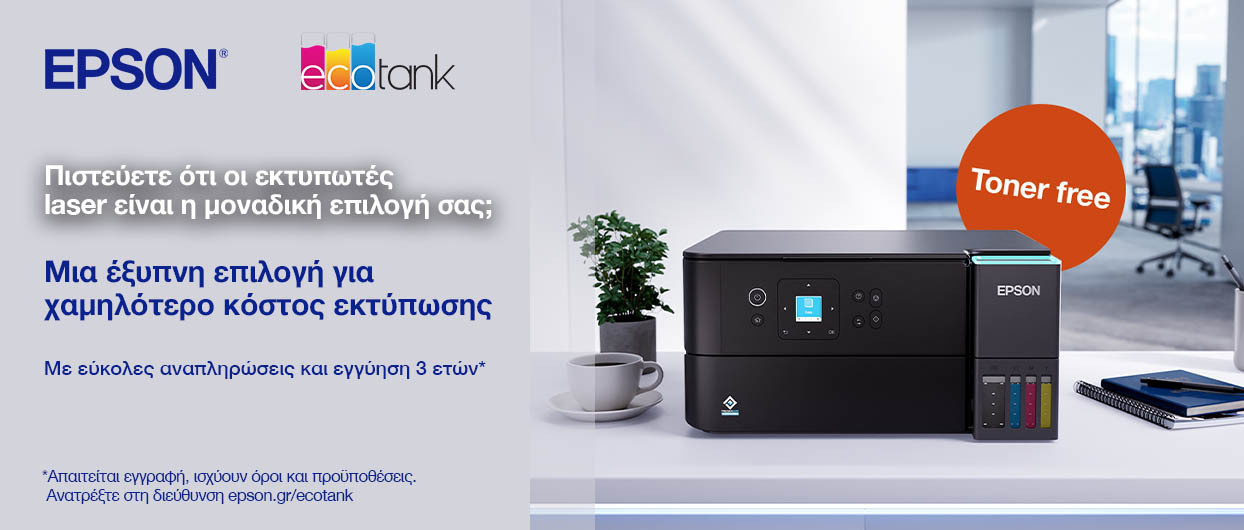
Ανακαλύψτε τα EcoTank

Εξοικονομήσετε έως 95% σε κόστος εκτύπωσης

Discover here Discover here
Ανακαλύψτε τα EcoTank

Description

Description

With the BM2300AW multifunction printer from Pantum, you can do everything, such as printing, scanning, and copying. It uses laser technology and can only print in black and white. Through WiFi, it has the ability to connect to your network, allowing you to print from any computer or mobile device remotely, without needing a USB cable connection.

Driver-free installation, easy to use

Win8.1/Win10/Win11 systems support driverless installation. The driver will be installed automatically when the printer is connected for the first time.


Convenient mobile printing with Bluetooth and Pantum App

Supports AirPrint, Mopria, direct Wi-Fi connection, Bluetooth configuration (iOS 11.0~16.0/Android 6.0~12.0), and Pantum App, allowing users to enjoy wireless printing from various mobile devices.

Performance and Settings Upgrade

The memory of this series is upgraded to 256MB and is equipped with a high-speed 800MHz processor, which can smoothly handle the printing of large files and avoid freezing.

Consumables

Toner TL-2310H 1,600 pages

Manufacturer

See full description

Specifications

Specifications

Technical Specifications

Type
Laser
Ink Tank
No
Printing Colour
Monochrome
Exclusively for Photos
No
All in one
Yes
Consumable
Toner
Memory
256 MB
Paper Size
A4, A5, A6, B5, B6, Executive, Folio, Legal, Letter
Compatibility
Android, Linux, Mac, Windows, iOS
Features
Mobile Printing Capability
Connectivity
Bluetooth, USB, Wi-Fi
Colour
White

Printer

Monochrome printing speed
22 ppm

Scanner / Scanner

Maximum Scan Resolution
1200x1200 DPI
ADF Sheet Quantity
50 sheets
Scanning Capabilities
ADF

Dimensions

Height
293 mm
Width
327 mm
Length
415 mm

Important information

Specifications are collected from official manufacturer websites. Please verify the specifications before proceeding with your final purchase. If you notice any problem you can report it here.

See all specifications

Reviews (5)

Reviews

  1. 3
  2. 1
  3. 3 stars
    0
  4. 2 stars
    0
  5. 1
Review this product
  • Excellent for occasional use. I wanted a printer to do very little printing each month, and the multifunction printer I had would clog up with dried ink because of infrequent use. It was also important to me that it support scanning to a network folder (SMB), so I could scan documents directly to my NAS. The setup was easy and trouble-free for me. I enabled Bluetooth on the printer, downloaded the app on my iPhone, tapped Add Device, it found the printer and sent it the Wi-Fi settings (it only supports 2.4 GHz Wi-Fi), and that was it. I haven't connected it via USB. When printing directly from my phone, the iPhone sees it because of AirPrint. The same goes for the Mac Mini, which found the printer without me having to do anything. On the PC, you follow the usual procedure: Add Printer, it found it, installed the driver, and that was it. For scanning to the network, I accessed the printer's menu via its IP address on the web, added an entry under SMB, and entered the NAS IP address, the name of the folder where the scans will go, the username and password, and that was done too. Now we'll have to see if any problems come up, but so far it's exactly what I wanted.

    Translated from Greek ·
    Did you find this review helpful?
  • Verified purchase

    Unfortunately, it broke on the first day. Apparently, it was defective from the company.

    Translated from Greek ·
    Did you find this review helpful?
  • Verified purchase

  • Verified purchase

  • Excellent for occasional use. I wanted a printer to do very little printing each month, and the multifunction printer I had would clog up with dried ink because of infrequent use. It was also important to me that it support scanning to a network folder (SMB), so I could scan documents directly to my NAS. The setup was easy and trouble-free for me. I enabled Bluetooth on the printer, downloaded the app on my iPhone, tapped Add Device, it found the printer and sent it the Wi-Fi settings (it only supports 2.4 GHz Wi-Fi), and that was it. I haven't connected it via USB. When printing directly from my phone, the iPhone sees it because of AirPrint. The same goes for the Mac Mini, which found the printer without me having to do anything. On the PC, you follow the usual procedure: Add Printer, it found it, installed the driver, and that was it. For scanning to the network, I accessed the printer's menu via its IP address on the web, added an entry under SMB, and entered the NAS IP address, the name of the folder where the scans will go, the username and password, and that was done too. Now we'll have to see if any problems come up, but so far it's exactly what I wanted.

    Translated from Greek ·
    0
  • Unfortunately, it broke on the first day. Apparently, it was defective from the company.

    Translated from Greek ·
    0
  • 0
  • 0
  • 0
  • See all
Questions (1)

Questions

19 users have this product and can help you

Ask for the product
akylina_flute

Χαίρετε! Μου βγάζει μήνυμα "paper empty", ενώ έχει χαρτί. Αν σας έτυχε, πώς το λύσατε; Ευχαριστώ.

See all questions (1)

Description & Specifications

With the BM2300AW multifunction printer from Pantum, you can do everything, such as printing, scanning, and copying. It uses laser technology and can only print in black and white. Through WiFi, it has the ability to connect to your network, allowing you to print from any computer or mobile device remotely, without needing a USB cable connection.

Driver-free installation, easy to use

Win8.1/Win10/Win11 systems support driverless installation. The driver will be installed automatically when the printer is connected for the first time.


Convenient mobile printing with Bluetooth and Pantum App

Supports AirPrint, Mopria, direct Wi-Fi connection, Bluetooth configuration (iOS 11.0~16.0/Android 6.0~12.0), and Pantum App, allowing users to enjoy wireless printing from various mobile devices.

Performance and Settings Upgrade

The memory of this series is upgraded to 256MB and is equipped with a high-speed 800MHz processor, which can smoothly handle the printing of large files and avoid freezing.

Consumables

Toner TL-2310H 1,600 pages

Manufacturer

Technical Specifications

Type
Laser
Ink Tank
No
Printing Colour
Monochrome
Exclusively for Photos
No
All in one
Yes
Consumable
Toner
Memory
256 MB
Paper Size
A4, A5, A6, B5, B6, Executive, Folio, Legal, Letter
Compatibility
Android, Linux, Mac, Windows, iOS
Features
Mobile Printing Capability
Connectivity
Bluetooth, USB, Wi-Fi
Colour
White

Printer

Monochrome printing speed
22 ppm

Scanner / Scanner

Maximum Scan Resolution
1200x1200 DPI
ADF Sheet Quantity
50 sheets
Scanning Capabilities
ADF

Dimensions

Height
293 mm
Width
327 mm
Length
415 mm

Important information

Specifications are collected from official manufacturer websites. Please verify the specifications before proceeding with your final purchase. If you notice any problem you can report it here.

Reviews (5)

  1. 3
  2. 1
  3. 3 stars
    0
  4. 2 stars
    0
  5. 1
Review this product
  • Excellent for occasional use. I wanted a printer to do very little printing each month, and the multifunction printer I had would clog up with dried ink because of infrequent use. It was also important to me that it support scanning to a network folder (SMB), so I could scan documents directly to my NAS. The setup was easy and trouble-free for me. I enabled Bluetooth on the printer, downloaded the app on my iPhone, tapped Add Device, it found the printer and sent it the Wi-Fi settings (it only supports 2.4 GHz Wi-Fi), and that was it. I haven't connected it via USB. When printing directly from my phone, the iPhone sees it because of AirPrint. The same goes for the Mac Mini, which found the printer without me having to do anything. On the PC, you follow the usual procedure: Add Printer, it found it, installed the driver, and that was it. For scanning to the network, I accessed the printer's menu via its IP address on the web, added an entry under SMB, and entered the NAS IP address, the name of the folder where the scans will go, the username and password, and that was done too. Now we'll have to see if any problems come up, but so far it's exactly what I wanted.

    Translated from Greek ·
    Did you find this review helpful?
  • Verified purchase

    Unfortunately, it broke on the first day. Apparently, it was defective from the company.

    Translated from Greek ·
    Did you find this review helpful?
  • Verified purchase

  • Verified purchase

  • Excellent for occasional use. I wanted a printer to do very little printing each month, and the multifunction printer I had would clog up with dried ink because of infrequent use. It was also important to me that it support scanning to a network folder (SMB), so I could scan documents directly to my NAS. The setup was easy and trouble-free for me. I enabled Bluetooth on the printer, downloaded the app on my iPhone, tapped Add Device, it found the printer and sent it the Wi-Fi settings (it only supports 2.4 GHz Wi-Fi), and that was it. I haven't connected it via USB. When printing directly from my phone, the iPhone sees it because of AirPrint. The same goes for the Mac Mini, which found the printer without me having to do anything. On the PC, you follow the usual procedure: Add Printer, it found it, installed the driver, and that was it. For scanning to the network, I accessed the printer's menu via its IP address on the web, added an entry under SMB, and entered the NAS IP address, the name of the folder where the scans will go, the username and password, and that was done too. Now we'll have to see if any problems come up, but so far it's exactly what I wanted.

    Translated from Greek ·
    0
  • Unfortunately, it broke on the first day. Apparently, it was defective from the company.

    Translated from Greek ·
    0
  • 0
  • 0
  • 0
  • See all
167,50 €
3,50 €